
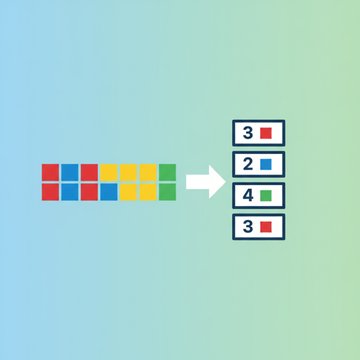

A GIF's frame rate is how many still images (frames) it shows per second, and it directly controls both how smooth the animation looks and how big the file gets. A GIF running at 24 frames per second looks fluid but can be twice the size of the same clip at 12 fps, because every extra frame is another full image stuffed into the file. If your GIF feels too heavy, cutting the frame rate is often the fastest fix, right after reducing the color palette.
Content Table
What GIF frame rate actually means
A GIF is really just a stack of individual images played in sequence. The frame rate, usually written as frames per second (fps), tells the viewer how quickly to flip through them. Higher fps means more frames packed into each second, which produces smoother motion.
Here is the quirky part: the GIF format does not store a single "fps" number the way a video file does. Instead, every frame carries its own delay time, measured in hundredths of a second. To get a steady playback speed, all frames simply share the same delay. So the animation frame rate you see is a result of those per-frame delays.
How frame rate changes file size
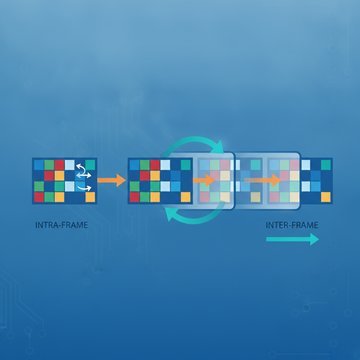
Every frame in a GIF is a complete image with its own pixel and palette data. GIF does not use the smart inter-frame compression that modern video codecs rely on, so doubling the frame count roughly doubles the raw data before optimization. That is why gif fps has such a heavy impact on gif file size.
Here is a rough example using a 3-second, 480px animation:
| Frame rate | Total frames | Approx. file size | Look |
|---|---|---|---|
| 30 fps | 90 | 4.8 MB | Very smooth |
| 24 fps | 72 | 3.9 MB | Smooth |
| 15 fps | 45 | 2.4 MB | Good enough |
| 10 fps | 30 | 1.6 MB | Slightly choppy |
Notice the sizes scale almost linearly with the frame count. Dropping from 30 fps to 15 fps cuts the file roughly in half while most viewers barely notice the difference on short loops. This is the same principle that governs video bitrate and file size: more data per second means a bigger file.
Fixed frame rate and the delay problem
Because GIF frame rate is built from per-frame delays, you can end up with an inconsistent, jittery animation if the delays are uneven. A fixed frame rate means every frame gets the exact same delay value, so playback speed stays constant. Most tools export this way by default, but converted or hand-edited GIFs sometimes carry mixed delays.
Two things worth knowing about gif playback speed:
- Browsers clamp very low delays. If a GIF sets a delay of 0 or 1 (aiming for 100 fps or 50 fps), most browsers, including Chrome and Firefox, quietly bump it up to about 10 fps. Your "fast" GIF plays slower than you intended.
- Odd delay values create uneven motion. A GIF with delays alternating between 3 and 7 hundredths will look stuttery even if the average frame rate seems fine.
You can read the exact behavior in the MDN GIF format documentation, which notes how animation timing is handled across browsers.
What frame rate should you use
There is no single correct answer, but these ranges cover almost every use case:
- 10 to 15 fps for reaction GIFs, memes, and simple UI demos. Small file size, perfectly readable motion.
- 15 to 24 fps for screen recordings, tutorials, and product walkthroughs where smoothness matters.
- 24 to 30 fps only when you genuinely need fluid motion, like fast gameplay clips. Expect large files.
That last point matters. For anything longer than a few seconds or higher than 30 fps, converting to MP4 or WebM produces dramatically smaller files at better quality, because those formats only store what changes between frames. If you are choosing a delivery format for social platforms, our guide to the best compression settings for web and social media walks through when each format wins.
Faster ways to shrink a GIF
Frame rate is one lever, but it is not always the most powerful one. In order of impact, here is how to reduce animated gif file size:
- Reduce the color palette. GIFs support up to 256 colors. Dropping to 64 or 128 often shrinks the file more than cutting frames, with little visible loss. This is a form of image quantization.
- Lower the frame rate. Drop from 30 to 15 fps and halve the frame data, as shown above.
- Merge duplicate frames. Static sections of an animation repeat identical frames; merging them removes redundant data without changing playback.
- Trim the dimensions. A 480px wide GIF holds roughly a quarter the pixels of a 960px one. Resizing has a big effect.
Keeping file size down also matters when you share GIFs, since platforms enforce hard caps. Check our roundup of every major platform's file size limit before you upload a large loop, and if you plan to email one, review the reality of email attachment size limits.

Shrink a heavy GIF without killing the animation
Our free GIF compressor cuts gif file size by repacking the palette and merging duplicate frames, so your animation stays smooth while the file gets much lighter. No login, nothing stored.
Compress your GIF free →
Yes. Because each GIF frame is a full image with no inter-frame compression, halving the frame rate roughly halves the frame data. Dropping from 30 fps to 15 fps can cut file size by about 50 percent, and on short loops most viewers barely notice the difference in smoothness.
In theory you can set delays for very high frame rates, but browsers clamp anything faster than roughly 50 fps. If a GIF sets a delay of 0 or 1, Chrome and Firefox bump it to about 10 fps. So aiming above 30 fps rarely gives the smoothness you expect and just wastes file size.
GIF speed comes from per-frame delay values, not a single fps setting. If you used very short delays, the browser likely clamped them to a minimum. Uneven delays across frames also cause stuttering. Exporting with a fixed frame rate, where every frame shares the same delay, keeps playback consistent.
Reducing the color palette is usually the single most effective step, since dropping from 256 to 64 colors can shrink a GIF dramatically with little visible loss. Lowering frame rate helps too. For the smallest result, combine both, then resize the dimensions if the GIF is still too large.
Whenever the clip is longer than a few seconds or needs high frame rates. Video formats store only what changes between frames, so a 30 fps clip that is 5 MB as a GIF can drop to a few hundred kilobytes as MP4 or WebM at better quality. Use GIF only for short, simple loops.