

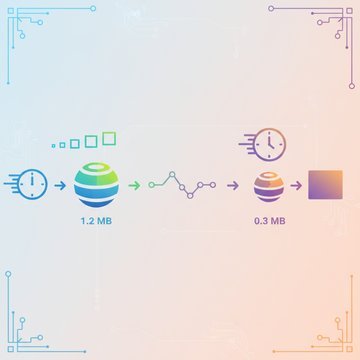

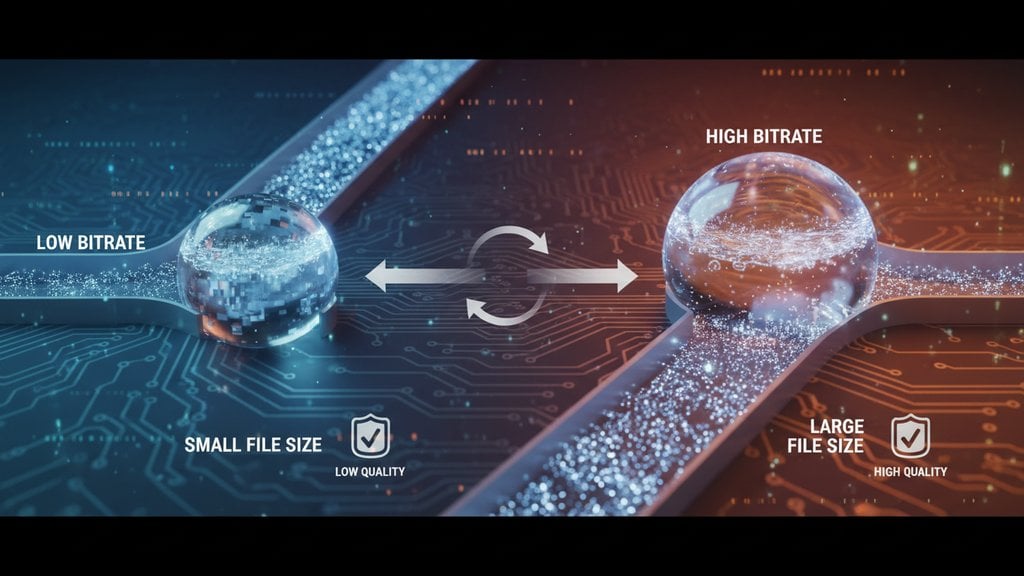
Video bitrate is the amount of data used to represent each second of video, measured in kilobits per second (kbps) or megabits per second (Mbps). It directly controls both the visual quality and the file size of your video: higher bitrate means more data per second, which produces sharper, smoother footage but creates much larger files. Lower bitrate shrinks the file but can introduce blurring, blocking artifacts, and color banding if pushed too far.
Content Table
What Exactly Is Video Bitrate?
Think of a video as a stream of image frames playing in rapid sequence - typically 24, 30, or 60 frames per second. Each frame contains color and brightness data for every pixel. Bitrate determines how much data is allocated to describe all of that information every second.
A 1080p video at 8 Mbps is giving itself 8 million bits per second to describe the picture. A 1080p video at 2 Mbps has to describe the same picture using only a quarter of that data. The encoder has to throw away detail to fit the budget - and that's when quality degrades.
Bitrate vs Quality - The Real Relationship
The relationship between bitrate and quality is not linear - it follows a curve of diminishing returns. Going from 1 Mbps to 4 Mbps on a 1080p video produces a dramatic visible improvement. Going from 20 Mbps to 40 Mbps on the same video is nearly impossible to distinguish with the naked eye.
Several factors affect how much bitrate a video actually needs:
- Motion complexity - Fast-moving scenes (sports, action, gaming) need more bitrate than static talking-head footage. Lots of motion means more change between frames, and more change requires more data.
- Scene complexity - A detailed forest with thousands of leaves needs more data than a plain white wall. Fine textures, grain, and noise are particularly "expensive" in bitrate terms.
- Frame rate - 60 fps video needs roughly twice the bitrate of 30 fps video at the same quality level, because there are twice as many frames to encode per second.
- Color depth - HDR video with 10-bit color carries more information per pixel than standard 8-bit SDR video, so it typically needs more bitrate to encode cleanly.
The most visible quality problem from low bitrate is called compression artifacts - blocky squares, smeared edges, and color banding. These appear when the encoder doesn't have enough data budget to represent a frame accurately, so it approximates large regions with a single color block instead of rendering the fine detail.
How Bitrate Controls File Size
The math here is straightforward. File size is essentially bitrate multiplied by duration:
File size (MB) = (Bitrate in Mbps × Duration in seconds) / 8So a 10-minute video (600 seconds) at 8 Mbps works out to: (8 × 600) / 8 = 600 MB . The same video at 2 Mbps would be only 150 MB. That's why reducing bitrate is the most direct lever for shrinking video file size.
Audio bitrate adds to this too, but it's usually a small fraction - a typical 192 kbps stereo audio track on a 10-minute video adds only about 14 MB, which is negligible compared to the video stream.
Recommended Bitrates by Resolution and Use Case
These are the ranges used by major platforms and encoding standards. They're solid starting points - your ideal bitrate may vary depending on motion complexity and codec choice.
| Resolution | Frame Rate | Streaming (H.264) | Archival / Download |
|---|---|---|---|
| 480p (SD) | 30 fps | 500 kbps - 1 Mbps | 1 - 2 Mbps |
| 720p (HD) | 30 fps | 1.5 - 4 Mbps | 4 - 8 Mbps |
| 1080p (Full HD) | 30 fps | 4 - 8 Mbps | 8 - 20 Mbps |
| 1080p (Full HD) | 60 fps | 6 - 12 Mbps | 15 - 30 Mbps |
| 4K (UHD) | 30 fps | 15 - 25 Mbps | 35 - 68 Mbps |
| 4K (UHD) | 60 fps | 25 - 40 Mbps | 50 - 85 Mbps |
YouTube's own recommended upload encoding settings suggest 8 Mbps for 1080p at 30 fps with H.264, which aligns with the streaming column above. For VP9 (which YouTube also uses internally), you can achieve similar quality at roughly half that bitrate.
Constant vs Variable Bitrate (CBR vs VBR)
Not all bitrate is spent the same way. There are two main encoding modes that control how bitrate is distributed across a video:
- CBR (Constant Bitrate) - The encoder uses the same bitrate for every second of video, regardless of scene complexity. Simple scenes get more data than they need; complex scenes may not get enough. CBR is predictable and preferred for live streaming because it keeps the data rate steady.
- VBR (Variable Bitrate) - The encoder allocates more bits to complex scenes and fewer to simple ones, staying within a target average or maximum. The result is better quality at the same average file size. VBR is the right choice for most offline video encoding.
Within VBR, you'll also see CRF (Constant Rate Factor) mode, used by encoders like FFmpeg . CRF targets a consistent quality level rather than a specific bitrate - the encoder uses as much or as little data as needed to hit that quality target. This tends to produce the most efficient files for local storage and download.
How Video Encoding Codec Affects Bitrate Efficiency
Two videos can look identical but have very different file sizes if they use different codecs. A codec is the algorithm that compresses and decompresses video data, and newer codecs are dramatically more efficient at using every bit of their bitrate budget.
| Codec | Relative Efficiency | Typical Use Case | Browser / Device Support |
|---|---|---|---|
| H.264 (AVC) | Baseline | Universal compatibility, web, social | Near-universal |
| H.265 (HEVC) | ~50% better than H.264 | 4K, HDR, Apple devices, streaming | Good, but some licensing issues |
| VP9 | ~30-40% better than H.264 | YouTube, web video, open-source | All modern browsers |
| AV1 | ~50% better than H.264 | Streaming, web, future-proofing | Growing, newer devices only |
In practical terms: a 1080p video that looks great at 8 Mbps in H.264 might look equally good at 4-5 Mbps in H.265 or AV1. That's a 40-50% file size reduction with no perceptible quality loss - purely from switching codecs. This is a core concept in video compression that often gets overlooked when people focus only on the bitrate number itself.
How to Reduce Video Bitrate Without Wrecking Quality
Reducing bitrate is the most effective way to shrink a video file. The key is doing it intelligently so quality holds up. Here's how to approach it:
- Start with the right codec. If your video is encoded in H.264, re-encoding to H.265, VP9, or AV1 lets you cut bitrate by 30-50% before you even touch the quality setting. The output file will be smaller at the same visual quality.
- Scale down resolution if you don't need it. A 4K video played on a 1080p screen doesn't benefit from 4K resolution. Dropping to 1080p output lets you cut bitrate dramatically - 4K at 35 Mbps can become 1080p at 8 Mbps with no visible quality loss on most screens.
- Use VBR or CRF mode. Instead of setting a fixed bitrate, let the encoder allocate bits where they're needed. This squeezes more quality out of a lower average bitrate.
- Don't over-compress. There's a floor below which quality degrades badly. For 1080p content, dropping below about 2-3 Mbps with H.264 will produce visible blocking artifacts on anything with motion. With VP9 or H.265, you can go a bit lower.
- Match bitrate to your delivery target. If the video is going to WhatsApp, you need to hit a specific file size limit. If it's going to YouTube, you can be more generous because YouTube re-encodes anyway.
For compressing MP4 files specifically, you can use a dedicated MP4 compressor that handles codec selection and quality targeting in one step - no manual bitrate math required. The same applies to other formats like MOV and MKV .

Reduce video bitrate and file size in one click
SimpleSize's free video compressor lets you control video bitrate through a quality slider, choose from codecs like VP9, H.264, and AV1, and scale resolution - all without installing anything. Upload up to 1 GB and see your savings instantly.
Compress Your Video Free →
YouTube recommends 8 Mbps for 1080p at 30 fps using H.264, and 16 Mbps for 1080p at 60 fps. For 4K at 30 fps, they suggest 35-45 Mbps. Keep in mind that YouTube re-encodes everything after upload, so uploading at a higher bitrate than these targets mostly wastes upload time without improving the final result viewers see.
Not always. There's a point of diminishing returns where adding more bitrate produces no visible improvement. The codec matters just as much - a VP9 video at 5 Mbps can look better than an H.264 video at 8 Mbps. Beyond a certain threshold (roughly 20 Mbps for 1080p H.264), extra bitrate is wasted data that viewers cannot see.
When bitrate drops below what the content needs, you get compression artifacts - blocky squares (macroblocking), smeared motion blur, color banding in gradients, and loss of fine detail like hair or grass. Fast-moving scenes are hit hardest. For 1080p H.264 video with motion, going below about 2 Mbps usually produces clearly visible degradation.
For streaming, bitrate must stay within what the viewer's internet connection can receive. If a video's bitrate exceeds the viewer's download speed, playback buffers or drops to a lower quality tier. This is why platforms like Netflix and YouTube use adaptive bitrate streaming - they encode multiple versions at different bitrates and switch between them based on the viewer's connection speed in real time.
For most offline video files - downloads, storage, social media uploads - VBR (variable bitrate) is the better choice. It allocates more data to complex scenes and less to simple ones, giving you better quality at the same average file size. CBR (constant bitrate) is mainly useful for live streaming, where a predictable, steady data rate is more important than maximum compression efficiency.
Not really. Bitrate is baked into the encoded video stream, so changing it requires re-encoding the video. There's no lossless way to simply "strip out" data from an already-compressed video. Some tools can remux a video (change the container format without re-encoding), but that doesn't change bitrate - it just changes the wrapper file. To actually reduce bitrate, you need to run the video through an encoder again.