
Video Converter
Free video converter: upload a video, choose an output format, and download the converted file.
Free online video converter: change formats without losing control
SimpleSize Convert Video rewraps and re-encodes video files between container formats using server-side processing. You upload a file, choose an output format and codec, and the tool produces a new file in the format you need. No account, no software installation, and no file left on your device to clean up afterward.
The tool supports five output formats: MP4, MOV, MKV, WebM, and GIF. For encoding, you can choose between H.264, VP9, and AV1. You can also set a target height in pixels to downscale the resolution, or leave it at "original" to keep the source dimensions unchanged.
What the conversion process actually does
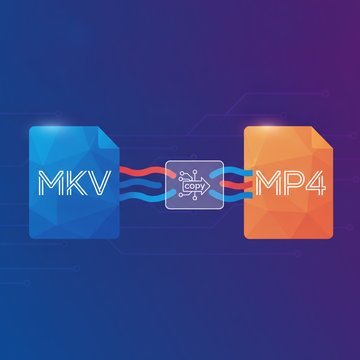
When you convert a video, two things may happen: remuxing and re-encoding. Remuxing moves the existing video and audio streams into a new container without changing the encoded data. Re-encoding decodes the original stream and encodes it again using the codec you selected. This tool re-encodes the video stream, which means the output codec you pick directly affects quality and file size.
H.264 is the default because it plays back on virtually every device and browser. VP9 and AV1 produce smaller files at equivalent quality, but require more processing time and are not supported by all older players. If you are converting for broad compatibility, H.264 with MP4 is the safest choice.
One format note worth knowing: WebM output requires a VP9 or AV1 video codec paired with Opus or Vorbis audio. If your source file uses AAC audio, the WebM conversion may fail. In that case, switch to MP4, MOV, or MKV instead.
Supported formats and when to use each one
- MP4 (H.264): The most compatible output. Use this for sharing, uploading to social platforms, or sending via email. Converting MOV to MP4 is one of the most common reasons people reach for a video converter, especially when moving files from Apple devices to Windows or Android.
- MOV: Apple's native container. Useful when you need to bring a file back into Final Cut Pro or other Apple software after editing on another platform.
- MKV: A flexible open container that handles multiple audio tracks, subtitles, and high-resolution video. Good for archiving or for media players like VLC. If you need to reduce the size of an MKV file after converting, see the MKV compressor .
- WebM: Designed for web delivery with open codecs. Use VP9 or AV1 output here for the smallest file sizes, provided your target environment supports it.
- GIF: Produces a looping animated image with no audio. Useful for short clips intended for messaging apps or documentation. GIF uses an image codec pathway, so file sizes can be large for anything longer than a few seconds.
How to convert a video: step by step
- Go to the Convert Video tool or select "Converters" from the navigation bar.
- Drag your video file onto the dropzone, or click to browse your device. The file size limit is 100 MB.
- Choose your output format: MP4, MOV, MKV, WebM, or GIF.
- Select a codec. H.264 works for most use cases. Choose VP9 or AV1 if you need a smaller output and your player supports it.
- Optionally set a target height in pixels to downscale the video. Leave it at "original" to keep the source resolution.
- Click "Convert Video". A progress bar shows the percentage complete and estimated time remaining. You can cancel at any point if needed.
- When the conversion finishes, click the download button to save the file.
Practical use cases for format conversion
Most people reach for a video converter when a file simply will not play or upload in the format it arrived in. The three most common scenarios are:
- Converting MOV to MP4 so an iPhone or camera recording plays on Windows, Android, or uploads correctly to YouTube, Instagram, or Google Drive.
- Converting WebM to MP4 when a screen recording or browser-captured video needs to be edited in software that does not accept WebM containers.
- Converting MKV to MP4 when a downloaded video file needs to be trimmed in a mobile app or uploaded to a platform that only accepts MP4.
If you want to reduce file size rather than change the format, the video compressor is a better starting point. Conversion and compression serve different goals, and understanding which you need saves time. For more background on how codecs affect file size and quality, the codec explainer covers the mechanics in plain language.
Limits and what to expect
Files must be 100 MB or smaller. The tool allows up to 10 successful conversions per IP address per day, with the counter resetting at midnight UTC. Only completed conversions count toward the limit, so cancelled or failed jobs do not reduce your allowance. Files are processed on the server and are not stored permanently after the job completes.
FAQ
SimpleSize Convert Video is a free browser-based tool that re-encodes video files from one format to another. You upload a file, select an output format (MP4, MOV, MKV, WebM, or GIF), choose a codec (H.264, VP9, or AV1), and optionally set a target resolution. The server processes the file and returns a downloadable result. No account is required and nothing is installed on your device.
The tool outputs MP4, MOV, MKV, WebM, and GIF. For video encoding you can choose H.264, VP9, or AV1. H.264 is the default and offers the widest device compatibility. VP9 and AV1 produce smaller files at comparable quality but require more processing time and are not supported by all older media players. GIF output has no audio and uses an image-based codec pathway.
Upload your MOV file to the Convert Video tool , select MP4 as the output format, choose H.264 as the codec for maximum compatibility, and click "Convert Video". The server re-encodes the video stream into the MP4 container. This is the most common conversion for files recorded on iPhones or cameras that need to play on Windows, Android, or upload to social platforms.
WebM requires VP9 or AV1 video paired with Opus or Vorbis audio. If your source file uses AAC audio (common in MP4 and MOV files recorded on cameras or phones), the conversion will fail with an audio compatibility error. The fix is to switch the output format to MP4, MOV, or MKV, which all accept AAC audio without any issues.
Converting changes the container format or codec of the video stream. The goal is compatibility, not necessarily a smaller file. Compressing targets file size by reducing bitrate, resolution, or both, often within the same format. If your video will not play or upload because of the format, use the converter. If the file is too large to send or store, the video compressor is the right tool. You can also do both in sequence.
Upload your MKV file, select MP4 as the output format, and pick a codec. H.264 is recommended for broad compatibility. MKV is a flexible container that can hold multiple audio tracks and subtitles, but many mobile apps and social platforms only accept MP4. The conversion re-encodes the video stream into the MP4 container, making the file usable in those environments.
Upload your WebM file, select MP4 as the output format, and choose H.264 as the codec. WebM files are common outputs from browser screen recorders and video editors that export open formats. Many editing tools and platforms do not accept WebM, so converting it to MP4 with H.264 gives you a file that works almost everywhere without compatibility issues.
Each file must be 100 MB or smaller. You can run up to 10 successful conversions per IP address per day. The counter resets at midnight UTC. Only completed conversions count toward the limit. Cancelled or failed jobs do not reduce your remaining allowance, so you will not lose a slot if a conversion fails due to a format compatibility issue or if you cancel mid-process.
Videos are processed on the server to perform the conversion and are not stored permanently after the job completes. The tool does not require an account and does not link your uploads to any personal profile. Processing happens server-side, meaning your device does not need to do the encoding work, but the file does leave your machine during the conversion.
H.264 is the safest default. It plays on virtually every device, browser, TV, and platform without issues. VP9 produces smaller files than H.264 at similar quality and is well supported in modern browsers and Android. AV1 achieves the smallest file sizes but takes longer to encode and is not supported by all devices. For sharing or uploading, H.264 is recommended. For web delivery where file size matters, consider VP9. For a deeper look at how codecs work, read the codec guide .
Yes. The "target height" setting lets you downscale the video by specifying an output height in pixels (for example, 720 for 720p). The tool calculates the width automatically to preserve the original aspect ratio. Set it to "original" if you want the output to match the source resolution exactly. Downscaling during conversion reduces file size without running a separate compression step.
Yes. While a conversion is in progress, a cancel option is available. Clicking it sends a cancellation signal to the server, which stops the encoding process and marks the job as cancelled. Because the job did not complete successfully, it does not count against your daily conversion limit. This is useful if you realise you selected the wrong format or codec after the job has already started.