
Compress AVIF Image
Reduce the file size of your AVIF images by optimizing quality while keeping visual fidelity.
How to compress AVIF files and reduce image weight
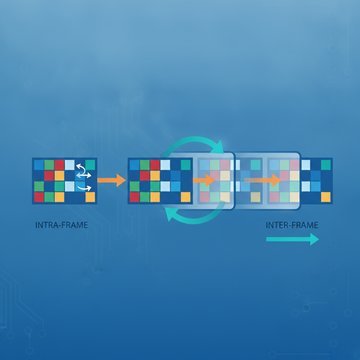
AVIF (AV1 Image File Format) stores image data using the AV1 video codec's intra-frame compression. That process encodes pixels into frequency coefficients, then quantizes and entropy-codes them. The result is typically smaller than JPEG or WebP at the same perceived quality. Even so, AVIF files can still be larger than necessary, especially when exported from editing tools at maximum quality settings or when metadata and color profiles add extra bytes.
Reducing an AVIF file's size means adjusting the quantization parameter: a higher value discards more high-frequency detail, which lowers file size. Chroma subsampling and the choice of color bit depth also affect the final weight. Understanding these levers helps you choose the right compression level for your use case.
Why AVIF file compression matters for the web
Images typically account for the largest share of a page's total byte weight. Smaller files load faster, consume less bandwidth, and score better on Core Web Vitals metrics such as Largest Contentful Paint. For mobile visitors on metered connections, every kilobyte saved has a direct effect on experience.
- Reduced page load time, which correlates with lower bounce rates
- Lower CDN and storage costs when serving millions of images
- Better scores on performance audits such as Google Lighthouse
- Smaller email attachments that clear size limits more reliably (see common attachment size limits )
- Faster uploads to cloud storage and social platforms
AVIF already has a compression advantage over older formats. Shrinking it further, without visible quality loss, is the practical goal of any avif compressor workflow.
AVIF versus other image formats: What changes at the file level
Choosing between formats comes down to how each one encodes pixel data. Here is how AVIF compares to the formats you are most likely already using.
- AVIF vs JPEG: JPEG uses the discrete cosine transform (DCT) with Huffman coding. AVIF uses AV1's more advanced transform set and arithmetic coding, which typically achieves 30 to 50 percent smaller files at equivalent quality.
- AVIF vs WebP: WebP uses VP8 or VP8L prediction coding. AVIF's AV1 codec is newer and generally more efficient, though encoding is slower and decoder support is still growing. You can also optimize WebP files if browser compatibility is a concern.
- AVIF vs PNG: PNG is lossless. AVIF can operate in both lossless and lossy modes. For photographic content, lossy AVIF is far smaller. For graphics with flat colors and sharp edges, PNG may still be preferable.
- AVIF vs HEIC: Both use similar codec families (AV1 vs HEVC). HEIC has broader support on Apple devices; AVIF has broader open-source and browser support.
When to minimize AVIF file size and when to leave it alone
Not every AVIF needs further compression. High-quality source files intended for print or archival work should stay at maximum fidelity. Compression is most valuable in these situations.
- Web publishing, where file size directly affects load speed
- Mobile app assets, where storage and download size are constrained
- Social media uploads, which re-encode images anyway and benefit from a clean, small source
- Batch exports from design tools, which often default to unnecessarily high quality
- Thumbnails and preview images, where high fidelity is rarely visible at small display sizes
If you are working with other formats alongside AVIF, the same principles apply. You can also optimize images in multiple formats depending on your output targets.
Practical tips for better AVIF compression results
A few habits improve outcomes before you even run a file through an avif compressor.
- Start from the highest-quality source. Compressing an already-compressed file stacks artifacts. Always work from the original export.
- Strip unnecessary metadata. EXIF, XMP, and ICC profiles can add kilobytes. Remove them unless color accuracy across devices is critical.
- Resize before compressing. Serving a 4000-pixel-wide image in a 400-pixel column wastes bytes regardless of compression quality. Scale the image to its display dimensions first.
- Test at multiple quality levels. The difference between quality 80 and quality 70 is often invisible to the eye but meaningful in file size. Compare outputs before committing.
- Check compression artifacts. Over-compression introduces banding and blurring. Read more about how artifacts form and how to spot them before finalizing your settings.
FAQ
Compression raises the quantization parameter used by the AV1 codec. Higher quantization rounds frequency coefficients to coarser values, which means fewer bits are needed to represent them. The entropy coder then packs those coarser values more tightly. The visual result is a smaller file with slightly reduced high-frequency detail. At moderate settings, the difference is below the threshold of human perception for most photographic content.
AVIF supports both modes. Lossy compression discards some pixel information to achieve smaller file sizes. Lossless mode preserves every pixel value exactly, using only entropy coding to reduce size. Lossless AVIF files are larger than lossy ones but smaller than equivalent lossless PNG files in many cases. For photographs, lossy is almost always the right choice. For graphics with flat colors or text, lossless avoids visible degradation.
It depends on the image content. Photographs with gradients and textures tolerate higher compression before artifacts appear. Flat graphics and images with sharp edges show banding and blocking at lower compression levels. In practice, a quality setting between 60 and 80 (on a 0 to 100 scale) often reduces file size by 30 to 60 percent compared to a quality-100 export, with minimal visible change on screen.
No. The output remains an AVIF file with the same .avif extension. Compression only adjusts the internal encoding parameters. The container format (ISOBMFF) and the codec (AV1) stay the same. Browser and application compatibility is unchanged. If you need a different format for compatibility reasons, that is a conversion task, not a compression task.
Each tool targets the specific codec used by that format. A PNG compressor works with DEFLATE-based lossless encoding and palette optimization. A JPEG compressor adjusts DCT quantization tables. An AVIF compressor manipulates AV1 quantization and tile settings. The underlying algorithms are different, so a tool built for one format cannot meaningfully optimize another. Always use a compressor matched to your file's actual format.
You can, but each lossy compression pass degrades quality further. The first pass discards some information. A second pass then quantizes the already-degraded data again, stacking artifacts. This is called generation loss. For best results, always compress from the original high-quality source file and choose your target quality in a single pass rather than compressing repeatedly.
Yes. AVIF supports an alpha channel for transparency. The alpha data is encoded as a separate AV1 bitstream within the same container. Lossy compression can affect the alpha channel in the same way it affects color channels, potentially introducing semi-transparent fringing around sharp edges. If your image has hard-edged transparency (logos, icons), test the output carefully or use lossless mode for the alpha channel specifically.
That depends on the tool's data handling policy. Before uploading sensitive images, check the privacy policy to confirm how long files are stored and whether they are used for any other purpose. For confidential images, a locally processed tool (one that runs in the browser without sending data to a server) is the safest option. Our privacy policy explains exactly how uploaded files are handled.
As of 2024, Chrome, Firefox, Opera, and Edge all support AVIF natively. Safari added support in version 16. Internet Explorer does not support it. Cumulative browser support is above 90 percent of global users. For the small percentage without support, use a picture element with a WebP or JPEG fallback. AVIF is now a safe primary format for most web publishing contexts.
Metadata removal is a separate operation from codec compression, but it reduces file size. EXIF data (camera settings, GPS coordinates), XMP tags, and embedded color profiles can add anywhere from a few kilobytes to over 100 kilobytes per file. Stripping them does not affect pixel data or visual quality. Combining metadata removal with quality-based compression gives the best overall size reduction.
Keep the AVIF format when your target environment supports it and file size is the primary concern. AVIF's AV1 codec achieves better compression efficiency than JPEG or WebP at the same quality level, so converting away from AVIF usually increases file size. Convert to another format only when compatibility is the limiting factor, for example when a platform or application does not yet render AVIF correctly.
Yes. Google Lighthouse and PageSpeed Insights flag oversized images as a performance issue. Switching to AVIF and then optimizing those files reduces the bytes transferred per page view. This directly improves Largest Contentful Paint (LCP) and Total Blocking Time in some cases. For a broader look at how image weight affects load speed, see our guide on making websites load faster .