
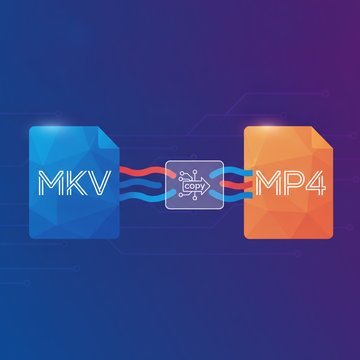
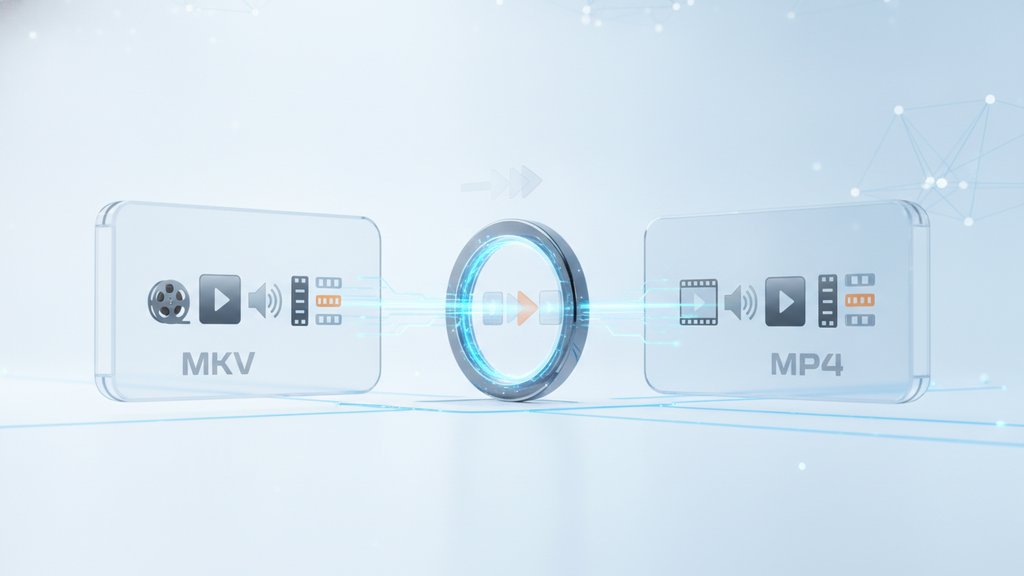
You can convert MKV to MP4 without re-encoding by copying the existing video and audio streams straight into a new MP4 container, a process called transmuxing. Because the actual compressed data is never touched, the conversion finishes in seconds instead of minutes and there is zero quality loss. This only works when the streams inside your MKV are already compatible with MP4 (usually H.264 video and AAC audio), which is true for the vast majority of files.
Content Table
What converting without re-encoding actually means
A video file is really two things stacked together: the container (the wrapper) and the codec-encoded streams (the actual video and audio data inside it). MKV and MP4 are both containers. The compressed video inside them is often the exact same thing, most commonly H.264.
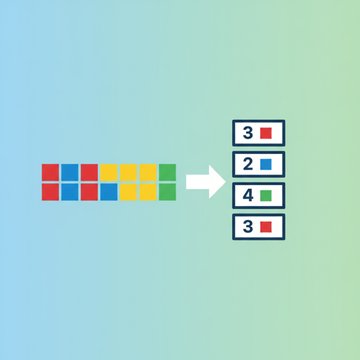
Re-encoding means decoding every frame of video back to raw pixels, then compressing it all over again with a codec. That is slow, burns CPU, and throws away a little quality each time. Converting without re-encoding skips all of that. You just:
- Open the MKV container
- Lift out the already-compressed video and audio streams
- Drop those exact streams into a fresh MP4 container
Nothing gets decoded or re-compressed. This stream-copy approach is the definition of lossless video conversion at the container level. If you want the deeper background on how encoding vs. re-wrapping differs, our guide on what video transcoding actually does breaks it down step by step.
Why transmuxing works so fast
The technical name for this is transmuxing: changing the multiplex (the container) without touching the compression. Since MKV and MP4 can both hold H.264 video and AAC audio, moving those streams between them is basically a copy-and-relabel operation.
Here is the practical difference in time and quality:
| Aspect | Re-encoding | Transmuxing (no re-encode) |
|---|---|---|
| Speed for a 2 GB file | Several minutes to an hour | A few seconds |
| Quality | Slight loss each pass | Identical, bit-for-bit |
| CPU / battery use | Heavy | Minimal |
| File size | Can shrink or grow | Roughly the same |
When you can skip re-encoding (and when you cannot)
Fast video conversion by copying streams only works when the source streams are formats MP4 supports. MP4 is picky about what it will hold. MKV, by contrast, accepts almost anything, which is exactly why some MKV files cannot be transmuxed cleanly.
You can copy streams (fast, lossless) when the MKV contains:
- H.264 (AVC) or H.265 (HEVC) video
- AAC or MP3 audio
You will need to re-encode when the MKV contains:
- VP9 or AV1 video (MP4 support is inconsistent, so these often need converting)
- Vorbis or Opus audio (not standard in MP4, so the audio has to be re-encoded to AAC)
- Certain subtitle formats like SubStation Alpha, which MP4 cannot store the same way
If your MKV came from a WebM-style workflow with VP9 video, you are usually stuck re-encoding at least part of it. The trade-offs between those codecs are covered in our comparison of WebM versus MP4 and when each format wins. Not sure what codec your file uses? Our explainer on what a codec is and why it matters shows you how to think about it.
How to convert MKV to MP4 without re-encoding
The easiest route is a browser-based converter that handles the stream copy for you. With our free online video converter, the flow is straightforward:
- Open the converter and drag your MKV file onto the dropzone.
- Choose MP4 as the output format.
- Leave the resolution set to original so nothing gets rescaled.
- Click Convert Video and watch the progress bar.
- Download the finished MP4 when it completes.
When the source video is already H.264 and the audio is AAC, the container swap is quick and the picture quality is untouched. If your file uses a codec MP4 does not accept, the converter re-encodes only what it must so the output still plays everywhere.
Prefer the command line? FFmpeg is the standard tool, and the stream-copy flag makes it explicit:
ffmpeg -i input.mkv -c copy output.mp4
The
-c copy
part tells
FFmpeg
to copy every stream instead of re-encoding. If it complains that a codec is not supported in MP4, that is your signal that this particular file needs a real conversion for at least one stream.
Common problems and fixes
Most failed transmuxes come down to one of a few predictable issues:
| Problem | Cause | Fix |
|---|---|---|
| "Codec not supported in MP4" | Video is VP9/AV1 or audio is Opus/Vorbis | Re-encode that stream to H.264 / AAC |
| No sound after conversion | Audio codec MP4 cannot store by copy | Convert audio to AAC while copying video |
| Subtitles disappeared | MKV subtitle format not MP4-compatible | Convert to MP4-friendly subtitles or burn them in |
| File plays but seeks slowly | MP4 index (moov atom) at end of file | Move it to the front for streaming |
If you only need to fix the audio, you can copy the video stream and re-encode just the audio, which is still far faster than a full re-encode. And if your real goal is a smaller file rather than a format switch, look at proper video compression techniques that save space without wrecking quality instead of transmuxing.

Convert MKV to MP4 in seconds, quality intact
Our free online video converter can convert MKV to MP4 without re-encoding when your streams are compatible, so you get a playable MP4 fast with no quality loss and nothing to install.
Try the free video converter →
No. When you copy streams instead of re-encoding, the compressed video and audio data is moved untouched into the new MP4 container. The result is bit-for-bit identical in quality to the source. Quality loss only happens when a codec is incompatible and a stream has to be re-encoded.
The slow part of any conversion is compressing every frame of video. Transmuxing skips that entirely by copying the already-compressed streams into a new container. The only work left is reading and writing the file, so a multi-gigabyte movie can finish in seconds instead of many minutes.
MP4 only supports certain codecs. If your MKV holds VP9 or AV1 video, or Opus or Vorbis audio, MP4 cannot store those by simple copy. Those streams must be re-encoded to H.264 video and AAC audio, which adds time and a small quality change to the affected stream.
Not on its own. Changing the container without re-encoding keeps the file roughly the same size because the compressed data is unchanged. To reduce file size you need actual video compression, which lowers the bitrate or resolution and is a separate process from switching containers.
MP4 plays on nearly every device, browser, phone, and TV, which is why people convert to it. MKV is more flexible and can hold more stream types and subtitle formats, but fewer players support it natively. For maximum compatibility, MP4 is the safer choice.