
Compression artifacts are the visual glitches that appear in an image after it has been compressed too aggressively, showing up as blocky patches, blurry edges, smeared colors, or a general muddiness that wasn't in the original. They happen because compression algorithms discard image data to shrink the file size, and when too much data gets thrown away, the reconstruction looks wrong. Understanding exactly why this happens, and what you can do about it, will save you from publishing images that look worse than they should.
Content Table
How Image Compression Actually Works
There are two broad types of image compression: lossless and lossy. The difference matters a lot when it comes to artifacts.
- Lossless compression (used by PNG, WebP lossless, GIF) removes redundant data mathematically without discarding any pixel information. The original can be perfectly reconstructed. No artifacts, ever.
- Lossy compression (used by JPEG, WebP lossy, AVIF, HEIC) actually deletes information it considers less visually important. The original cannot be perfectly reconstructed. This is where artifacts come from.
JPEG, the most common lossy format, uses a process called Discrete Cosine Transform (DCT). It breaks the image into 8x8 pixel blocks, converts the color and brightness data in each block into frequency information, and then rounds off the high-frequency details (fine textures, sharp edges) based on a quality setting. The lower the quality setting, the more rounding happens, and the more the reconstructed image differs from the original.
Types of Compression Artifacts You'll Actually See
Not all artifacts look the same. Here's what to watch for and what causes each one:
| Artifact Type | What It Looks Like | Root Cause |
|---|---|---|
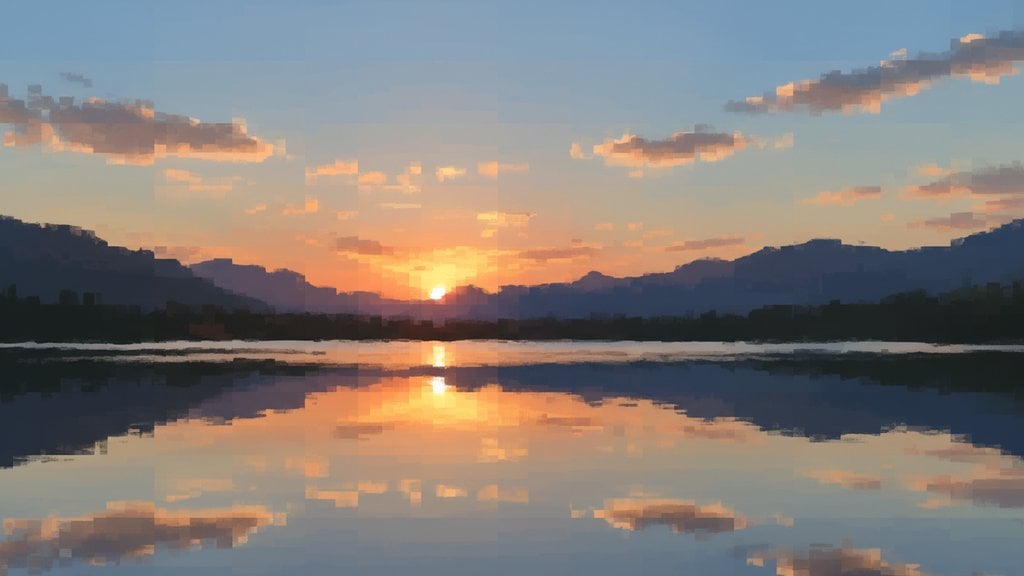
| Blocking | Visible 8x8 pixel squares, especially in flat areas like sky or skin | DCT block boundaries become visible at low JPEG quality |
| Ringing / Mosquito Noise | Halo-like fringing around sharp edges and text | High-frequency detail removal causes "Gibbs phenomenon" at edges |
| Color Banding | Visible stripes in gradients (sunsets, shadows) | Too few colors to represent a smooth transition |
| Blurring | Loss of fine detail and soft textures | High-frequency data discarded during quantization |
| Chroma Subsampling Smear | Color bleeding around edges, colors look "off" | Color channels sampled at lower resolution than brightness |
JPEG Artifacts: Why They're So Common
JPEG artifacts get their own section because JPEG is still the dominant format for photos on the web, and its artifacts are the most frequently misunderstood. Two things about JPEG's design make artifacts particularly noticeable:
1. Chroma subsampling. JPEG separates brightness (luma) from color (chroma) and typically stores color at half the resolution. Human eyes are less sensitive to color detail than to brightness detail, so this usually looks fine. But at low quality settings, the color resolution drops even further, causing colors to bleed noticeably across edges.
2. Cumulative degradation. Every time you open and re-save a JPEG, the lossy compression runs again on already-compressed data. After three or four re-saves at even moderate quality, blocking and blurring become obvious. This is why you should always keep an original in a lossless format (TIFF, PNG, or a raw camera file) and only export to JPEG as a final step.
What Makes Artifacts Worse
Some image content is much more prone to artifacts than others. Knowing this helps you decide when to be more careful with your compression quality settings:
- Sharp edges and text are the hardest for JPEG to handle. Ringing artifacts appear around every letter and line.
- Smooth gradients (sky, skin tones, blurred backgrounds) show blocking very easily at low quality.
- Highly detailed textures (fabric, grass, fur) lose their fine detail and look smeared.
- Solid-color areas next to complex areas create visible block boundaries because adjacent 8x8 blocks are quantized very differently.
- Small file size targets that force extreme compression ratios are the single biggest cause of visible artifacts.
Screenshots and graphics with text are a classic example. Compress a screenshot of a webpage as a JPEG at quality 60, and the text becomes almost unreadable due to ringing. The same image saved as PNG looks perfect at a comparable or even smaller file size, because PNG uses lossless compression.
How to Avoid Compression Artifacts
The good news is that artifacts are almost entirely preventable if you follow a few practical rules:
Use the right format for the content type
- Photos and complex images: JPEG (quality 75-85), WebP lossy, AVIF, or HEIC
- Screenshots, graphics, text, logos: PNG or WebP lossless
- Animated content: WebP or AVIF (better quality than GIF at smaller sizes)
Don't compress below a sensible quality threshold
For JPEG, quality settings below 60 almost always produce visible artifacts. The sweet spot for most web photos is 75-85. Going from 85 to 75 typically cuts file size by 20-30% with barely noticeable quality loss. Going from 75 to 50 saves a bit more but introduces obvious degradation.
Start from the highest-quality source you have
Compressing a file that's already been compressed amplifies existing artifacts. Always compress from the original or a lossless version. If you only have a compressed JPEG, don't re-compress it to a lower quality setting expecting a clean result.
Use modern formats where possible
Formats like WebP, AVIF, and HEIC achieve significantly smaller file sizes at the same visual quality as JPEG. AVIF in particular can cut file sizes roughly in half compared to JPEG at equivalent quality, with fewer blocking artifacts, because it uses a more sophisticated compression algorithm based on the AV1 video codec.
Match compression settings to the platform
Every platform re-compresses what you upload, so its pass stacks on top of yours and artifacts compound. The guide on the best image compression settings for web and social media covers what each platform does and which settings to use before uploading.
Choosing the Right Format for the Job
Here's a practical reference for which format to use depending on your content and goals:
| Format | Compression Type | Best For | Artifact Risk |
|---|---|---|---|
| JPEG | Lossy | Photos, complex images | High at low quality |
| PNG | Lossless | Screenshots, logos, text, transparency | None |
| WebP | Both | Web images, versatile replacement for JPEG/PNG | Low (lossy mode) |
| AVIF | Lossy / Lossless | High-quality web photos, HDR content | Very low |
| GIF | Lossless (palette-limited) | Simple animations | Color banding (256 color limit) |
| HEIC | Lossy | iPhone photos, high-efficiency storage | Low |
For website performance, pairing the right format with proper compression is one of the highest-impact optimizations you can make. If you're managing images for a website, the broader guide on making your website faster with compression and responsive images covers how format choice, lazy loading, and image sizing work together.
If you're managing large volumes of images for storage platforms, understanding how to compress images for Google Drive without introducing visible quality loss is a related challenge worth reading about.
Can You Fix Artifacts After the Fact?
Honestly, not very well. Once data has been discarded by lossy compression, it's gone. You can apply noise reduction or smoothing filters to make artifacts less obvious, but these work by blurring the image, which trades one problem (blockiness) for another (softness). AI-based upscaling tools like Topaz Gigapixel can recover some apparent detail, but they're synthesizing plausible detail, not restoring the original.
The practical takeaway: prevention is infinitely better than remediation. Keep your originals lossless, compress only at the final output stage, and use quality settings that leave visible quality intact.
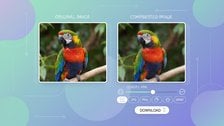
Compress images without the ugly artifacts
SimpleSize's free image compressor lets you control the quality slider precisely, so you hit your file size target without introducing compression artifacts. Supports JPEG, PNG, WebP, AVIF, HEIC, GIF, and more, with a lossless mode for formats where zero quality loss matters.
Try the Free Image Compressor →
For most web photos, a JPEG quality setting between 75 and 85 gives a good balance between file size and visual quality with minimal visible artifacts. Below 70, blocking and ringing become noticeable in most images. Above 85, file sizes grow significantly with very little visible improvement. For images with sharp edges or text, stay closer to 85 or switch to PNG entirely.
Social platforms re-compress every image you upload using their own quality settings, which are often quite aggressive. If your original already had some compression, the platform's second pass compounds those artifacts. To minimize this, upload the highest-quality version you have, ideally at the platform's recommended resolution, and let the platform do the only compression pass. Starting from a lossless PNG can also help.
No. PNG uses lossless compression, which means no data is ever discarded. The image can always be perfectly reconstructed from the compressed file. The only visual limitation with PNG is that GIF-style palette reduction (limiting to 256 colors) can cause color banding, but standard PNG-24 or PNG-32 files have no artifacts at all, regardless of the compression level applied.
Yes, generally. WebP lossy compression uses a more advanced algorithm than JPEG's DCT-based approach, and it doesn't use the same 8x8 block structure, so you don't get the classic JPEG blocking effect. At equivalent file sizes, WebP typically shows fewer and less severe artifacts than JPEG. AVIF goes even further, often producing noticeably cleaner results than WebP at the same file size, especially in smooth gradients and fine textures.
Not truly. The discarded data is gone permanently. You can reduce the visibility of artifacts using noise reduction filters or AI-based restoration tools, but these work by blurring or synthesizing detail rather than recovering the original. The result is softer, not sharper. The best approach is always to prevent artifacts by keeping lossless originals and compressing only once at the final output stage.
Text has very sharp, high-contrast edges, which are exactly the features JPEG's algorithm handles worst. The ringing artifact (also called mosquito noise) creates a halo of discoloration around every letter, making text blurry and hard to read even at moderate quality settings. Screenshots should always be saved as PNG, which is lossless and handles sharp edges and flat colors perfectly without any artifacts.