

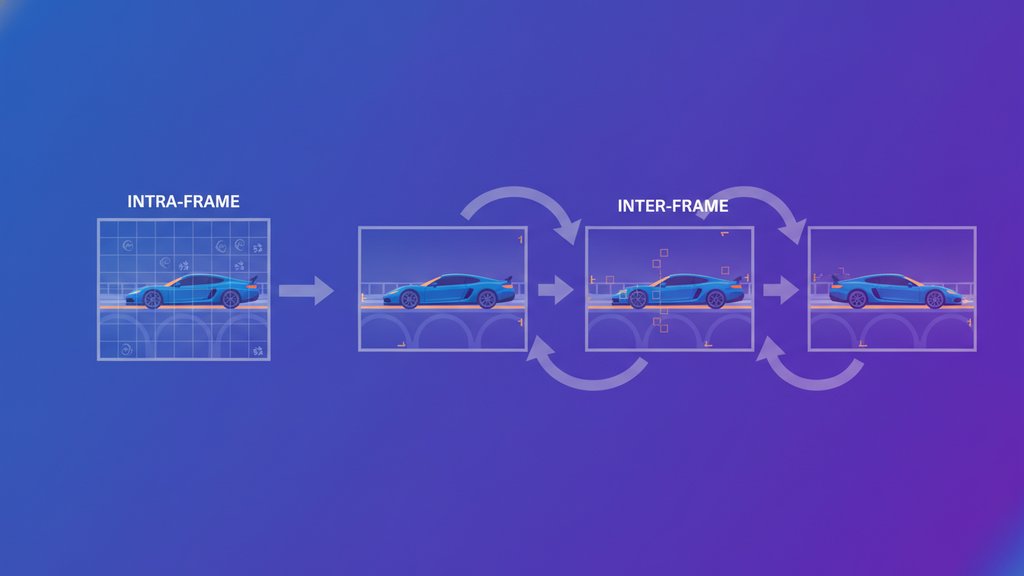
Video files use two kinds of compression working together: intra-frame compression, which shrinks each single frame on its own (like a JPEG photo), and inter-frame compression, which saves space by storing only what changed between frames instead of repeating unchanged parts. These two video compression types combine to cut file sizes dramatically, because most of what you see on screen barely changes from one frame to the next, and re-saving all that identical information would be wasteful.
Understanding the difference between inter frame vs intra frame compression explains almost everything about why a 10-second clip of a still landscape is tiny while the same length of fast action is huge. Here is how each one actually works and why modern codecs need both.
Content Table
What intra-frame compression does
Intra-frame compression treats each frame as a standalone image and squeezes it using the same tricks that shrink still photos. It never looks at neighboring frames. Everything it does happens inside one single frame, which is exactly where the "intra" (meaning "within") comes from.
The core techniques include:
- Spatial redundancy removal: Large areas of similar color (a blue sky, a white wall) get encoded compactly instead of pixel by pixel.
- Discrete cosine transform (DCT): The frame is broken into blocks and converted into frequency data, so fine detail the eye barely notices can be dropped.
- Chroma subsampling: Color information is stored at lower resolution than brightness because our eyes are less sensitive to color detail. We break this down in our guide to chroma subsampling and dropped color data.
A frame compressed this way is called an intra-coded frame, or I-frame. It is essentially a full JPEG-quality snapshot. It is the biggest single frame in a video because it holds a complete picture with no shortcuts borrowed from other frames.
What inter-frame compression does
Inter-frame compression, also called temporal compression, works across time. Instead of storing a full picture for every frame, it stores the differences between one frame and the next. "Inter" means "between," so this is compression between frames.
Think about a person talking in front of a static background. From frame to frame, the wall, the lamp, and the bookshelf do not move at all. Only the mouth, eyes, and maybe a hand shift slightly. Inter-frame compression records something like: "everything is identical to the last frame except this small region, and here is how it changed."
It relies on two clever ideas:
- Motion estimation: The encoder searches for blocks of pixels that simply moved to a new spot (a car sliding across the screen) and stores a motion vector instead of the whole block again.
- Residual coding: Whatever the prediction gets slightly wrong is stored as a small correction, which takes far less data than a full frame.
I-frames, P-frames, and B-frames explained
Codecs organize frames into a repeating structure called a Group of Pictures (GOP). Inside it you get three frame types that mix both compression styles.
| Frame type | What it stores | Relative size |
|---|---|---|
| I-frame (keyframe) | A complete, standalone image using intra-frame compression only | Largest |
| P-frame | Changes predicted forward from the previous I- or P-frame | Medium |
| B-frame | Changes predicted from both earlier and later frames | Smallest |
Here is how they fit together:
- Keyframes (I-frames) are the anchors. Every GOP starts with one. When you scrub a video and it jumps to a clean point, you landed on a keyframe. They also let playback recover if data gets corrupted.
- P-frames ("predicted" frames) look backward and say "use the previous frame, then apply these changes." They are much smaller than I-frames.
- B-frames ("bidirectional" frames) look both backward and forward, borrowing from past and future frames, which makes them the most efficient of all. The MPEG picture-type standard defines exactly how these are structured.
A typical GOP might run I B B P B B P B B P and then start over with the next I-frame. More I-frames means better seeking and error recovery but larger files. Fewer I-frames means smaller files but slower scrubbing.
Why video needs both types together
Neither compression type works alone for real video.
- Intra-frame only (like Motion JPEG or a series of images) produces large files because every frame is a full picture. It is great for editing since any frame can be decoded instantly, but terrible for storage and streaming.
- Inter-frame only would have nothing to reference. Prediction needs a starting point, so you always need at least one full I-frame to build from. Without periodic keyframes you also could never seek or recover from errors.
Modern codecs like H.264, H.265, and AV1 combine both: they lay down keyframes as anchors, then fill the gaps with lightweight P- and B-frames. That partnership is the backbone of every codec that encodes and decodes your video. If you want to see all these frame compression techniques at work on a real file, you can compress your video with our free tool.
How this affects your file sizes
Once you understand these video compression techniques, some real-world behavior finally makes sense:
- Content matters more than resolution sometimes. A 1080p slideshow can be smaller than a 720p sports clip because the slideshow has almost no motion for inter-frame compression to encode.
- Higher bitrate mostly benefits high-motion video. When there is a lot of change between frames, you need more data to describe it. See how this plays out in our breakdown of video bitrate and file size.
- Streaming platforms tune GOP length to balance seek accuracy against bandwidth, which is part of why YouTube re-compresses your uploads instead of keeping your original file.
When you re-encode a video, both compression types run again from scratch based on the codec, quality, and resolution you pick. That is why the same source can shrink very differently depending on how much motion it contains and how the encoder is configured.

Put intra-frame and inter-frame compression to work
Our free video compressor applies both video compression types for you: pick a codec like H.264, H.265, or AV1, set a quality target, and let keyframes plus P- and B-frames shrink your file.
Compress a video free →
Frequently asked questions
Yes. A keyframe is an I-frame (intra-coded frame), a complete standalone image compressed without referencing any other frame. Codecs place them at the start of each Group of Pictures so playback can seek to clean points and recover from errors. They are the largest frames in a video.
B-frames can predict from both earlier and later frames, giving the encoder two sources to borrow matching pixels from. That extra reference means less data needs to be stored as a difference. P-frames only look backward at one previous frame, so they usually need slightly more data to describe the same change.
Generally yes, at the same quality setting. Inter-frame compression saves space by storing only what changes between frames, so high-motion content like sports, rain, or fast pans has far more change to encode. Static scenes compress much smaller because most pixels stay identical from frame to frame.
Temporal compression is another name for inter-frame compression. It reduces file size across time by storing differences between frames instead of full pictures, using motion estimation and residual coding. Spatial compression, by contrast, works within a single frame. Video uses both together for the best size and quality balance.
Yes, formats like Motion JPEG do exactly that, encoding every frame as a standalone image. This makes editing easy since any frame decodes instantly, but files get very large. Most delivery codecs add inter-frame compression to shrink size dramatically for streaming and storage.