

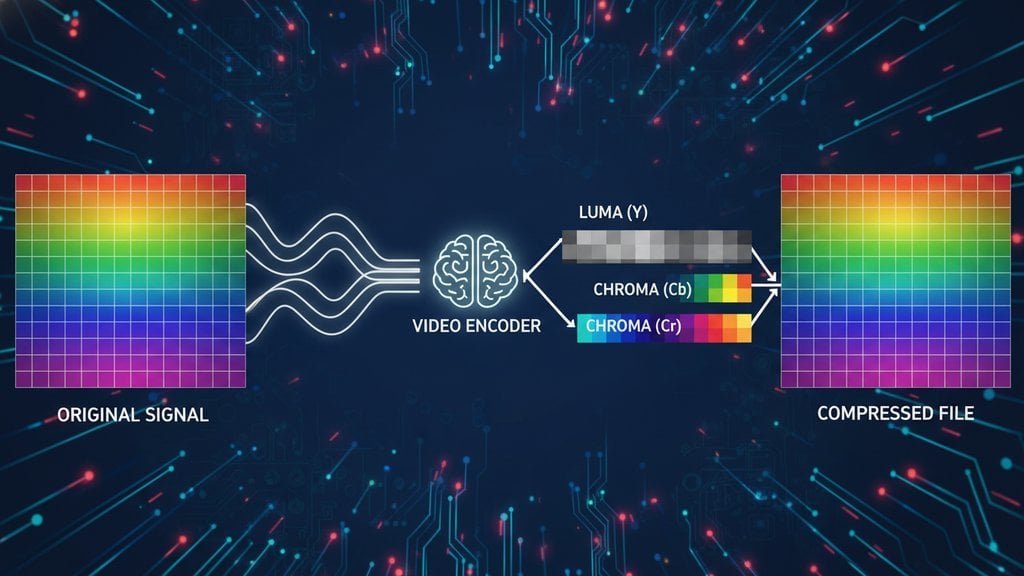
Chroma subsampling is a compression technique where video encoders deliberately throw away some of the color data in a frame while keeping all of the brightness data. The reason this works is rooted in how human vision actually functions: our eyes are far more sensitive to changes in light and dark than to changes in color. So when a video encoder needs to shrink file size, dropping color information is the most painless place to start.
Content Table
How Your Eyes See Color (And Why Encoders Exploit It)
Your retina has two types of photoreceptors: rods and cones. Rods handle luminance (brightness, contrast, detail). Cones handle color. You have roughly 120 million rods and only about 6 million cones. More importantly, your cones are clustered in one small central region called the fovea centralis, while rods spread across the entire retina.
The practical result: you notice a tiny shift in brightness much faster than you notice a tiny shift in color. Video engineers figured this out decades ago and built it into compression standards. If you can reduce color data by 50 to 75 percent without most viewers noticing, you get massive file size savings essentially for free.
The YUV Color Space: Separating Brightness from Color
Before chroma subsampling can happen, the video signal needs to be converted from RGB (red, green, blue) into a different color space called YUV (also written as Y'CbCr in digital contexts). This separation is what makes the whole trick possible.
- Y (luma): The brightness channel. Contains all the fine detail, edges, and contrast information.
- U / Cb (blue-difference chroma): How far the color shifts toward blue or yellow.
- V / Cr (red-difference chroma): How far the color shifts toward red or cyan.
Once the image is split into these three channels, the encoder can apply full resolution to Y and reduced resolution to U and V. The YCbCr color model is the standard used in JPEG, MPEG, H.264, H.265, and virtually every modern video format.
The Sampling Ratios Explained: 4:4:4, 4:2:2, and 4:2:0
The three numbers in a chroma subsampling ratio describe how color samples are distributed across a 4-pixel-wide block of two rows. The notation is J:a:b :
- J: The reference number of luma samples in the top row. Always 4.
- a: The number of chroma samples in the top row.
- b: The number of chroma samples in the bottom row (0 means the bottom row reuses the top row's samples).
| Format | Chroma Samples (per 4 luma) | Color Data Kept | Typical Use Case |
|---|---|---|---|
| 4:4:4 | 4 per row, both rows | 100% | Professional production, VFX, green screen |
| 4:2:2 | 2 per row, both rows | 50% | Broadcast TV, professional cameras (ProRes, DNxHD) |
| 4:2:0 | 2 in top row, 0 in bottom (shared) | 25% | Streaming, Blu-ray, YouTube, consumer cameras, H.264/H.265 |
| 4:1:1 | 1 per row, both rows | 25% | DV tape, early consumer camcorders |
4:2:0 is by far the most common format you will encounter. Every YouTube video, Netflix stream, and MP4 you download almost certainly uses it. The fact that it retains only 25 percent of the original color information sounds alarming until you remember that your visual system barely notices the missing data during normal playback.
4:4:4 vs 4:2:0: What You Actually Lose
The difference between 4:4:4 and 4:2:0 becomes visible in specific, predictable situations. Here is what changes:
- Color resolution: In 4:2:0, each 2x2 block of pixels shares a single color value. In 4:4:4, every pixel has its own. Sharp color edges (a red logo on a white background, for example) can look slightly blurry or bleed in 4:2:0.
- Text and graphics: Highly saturated text, especially on contrasting backgrounds, shows visible color fringing in 4:2:0. This is why screen recordings and presentation videos sometimes look softer than the original.
- Green screen compositing: Keying out a green or blue background requires clean, precise color edges. 4:2:0 footage makes this significantly harder because the color information is already blurred at the pixel level. Professional productions use 4:4:4 or at minimum 4:2:2 for this reason.
- Skin tones in motion: Generally fine in 4:2:0. This is exactly the use case it was optimized for.
Understanding how chroma subsampling interacts with file size makes a lot more sense once you have a handle on video compression as a whole. Chroma subsampling is just one layer of a much larger compression stack that includes motion estimation, DCT transforms, and quantization.
When Chroma Subsampling Actually Matters
For most viewers watching most content, 4:2:0 is completely invisible. The cases where you genuinely need to care about color sampling are:
- You are editing or grading the footage (not just watching it)
- You are compositing with chroma keys (green screen, blue screen)
- Your video contains sharp-edged graphics, text overlays, or logos with saturated colors
- You are archiving master files and want to preserve maximum color fidelity for future use
- You are delivering to a broadcast standard that requires 4:2:2 minimum
For everything else, streaming platforms, social media, and consumer playback, 4:2:0 is the right call. It keeps file sizes manageable without any perceptible quality loss under normal viewing conditions. This is also why video bitrate matters more to perceived quality in most streaming scenarios than chroma subsampling does.
If you are sending video files to clients or uploading to platforms, keeping file sizes in check is often just as important as color fidelity. Platform upload limits are a real constraint, and knowing them ahead of time saves a lot of frustration. You can find a detailed breakdown in this complete guide to platform file size limits.
Chroma Degradation: What Goes Wrong
Chroma degradation is what happens when color quality deteriorates beyond what subsampling alone causes. It usually compounds through multiple encode/decode cycles or aggressive bitrate reduction.
The most common culprits:
- Re-encoding already compressed footage: Every time you export a 4:2:0 file and re-encode it, the chroma blurring compounds. After two or three generations, color edges look visibly soft even on a standard monitor.
- Very low bitrates: When the encoder is starved for bits, it sacrifices chroma detail first. A 1080p video at 1 Mbps will show severe color blocking and banding. At 8 Mbps, the same 4:2:0 footage looks clean.
- Highly saturated content: Neon signs, bright sports jerseys, and vivid animations push the limits of what 4:2:0 can represent cleanly. These are the frames where compression artifacts first appear in the color channels.
- Wrong color space conversion: Converting between YUV and RGB incorrectly (using limited range vs. full range, for example) shifts colors in ways that look like degradation but are actually a metadata mismatch. This is extremely common when moving files between editing software and delivery platforms.
The best defense against chroma degradation is simple: work from the highest quality source you can, minimize re-encoding steps, and only apply chroma subsampling at the final export stage. If you are working with mobile video workflows, the same logic applies to how you handle files before they ever leave the device. Reducing file sizes without sacrificing quality on mobile requires understanding which compression decisions are reversible and which are not. The mobile-first file size optimization guide covers this in practical detail.

Shrink your video files without wrecking the color
When chroma subsampling already limits your color data, every unnecessary re-encode makes things worse. Compress your MP4 files in one step and avoid the generational quality loss that stacks up from repeated exports.
Compress My MP4 →
It affects both. JPEG images use 4:2:0 or 4:2:2 chroma subsampling by default, which is one reason why highly saturated JPEG images can show color blurring at sharp edges. RAW image formats skip subsampling entirely and store full color data per pixel, which is a big part of why RAW files are so much larger than JPEGs of the same scene.
For most natural footage (people, landscapes, interviews), the difference is nearly impossible to spot on a standard consumer display. It becomes visible when the content includes sharp-edged saturated graphics, text with vivid colors, or green screen compositing. On a calibrated professional monitor with the right test content, a trained eye can spot it, but casual viewing on a TV or laptop almost never reveals the gap.
The "2" in 4:2:0 means two chroma samples per four luma samples in the horizontal direction, and the "0" means the bottom row of pixels borrows (reuses) the chroma samples from the top row rather than sampling new ones. So you lose half the horizontal color resolution and half the vertical color resolution simultaneously, resulting in one chroma sample covering a 2x2 pixel block. That is 1 color sample for every 4 pixels, which equals 25% of full color data.
YouTube re-encodes all uploaded video to H.264 or VP9 using 4:2:0 chroma subsampling, regardless of what you upload. Even if you upload a 4:4:4 ProRes master, the delivered stream will be 4:2:0. This is standard practice across all major streaming platforms including Netflix, Vimeo, and TikTok. It is the right tradeoff for delivery because the bandwidth savings are enormous and most viewers cannot perceive the color difference on consumer screens.
For delivery (streaming, social media, client review), 4:2:0 is fine and widely expected. For production and editing, 4:2:2 is a meaningful upgrade if your camera supports it. It gives you cleaner color edges, better chroma keying results, and more headroom for color grading. Cameras like the Sony FX3, Canon C70, and Blackmagic Pocket Cinema cameras offer 4:2:2 internal recording precisely because editors and colorists benefit from the extra color data during post-production.
HDR content (Dolby Vision, HDR10) is typically still delivered in 4:2:0, but with 10-bit color depth instead of 8-bit. The extra bit depth is what gives HDR its expanded color volume and smoother gradients, not a change in chroma subsampling. Some professional HDR mastering workflows use 4:4:4 or 4:2:2 internally, but consumer delivery stays at 4:2:0 with higher bit depth. The combination of 4:2:0 and 10-bit is the current standard for 4K HDR streaming.