

Sending a WhatsApp video to a friend or colleague sounds simple until the app throws an error or the file arrives pixelated and unwatchable. WhatsApp enforces strict file size limits across every media type, and most users only discover those limits at the worst possible moment. Whether you need to compress video for WhatsApp, fix WhatsApp image quality issues, or shrink a PDF before sharing it in a group chat, this guide walks you through the exact steps using SimpleSize so you can send files quickly and without visible quality loss.
Content Table
Key Takeaways:
- WhatsApp limits images to 16 MB, videos to 16 MB (or 2 GB on newer versions via document send), and documents to 100 MB depending on the platform.
- Compressing before uploading preserves quality far better than letting WhatsApp auto-compress on send.
- SimpleSize handles images, videos, and PDFs in a browser with no software installation required.
- Sending a file as a "document" in WhatsApp bypasses some auto-compression but still requires the file to be under the size cap.
WhatsApp File Size Limits Explained
Before you compress anything, it helps to know exactly what you are working against. WhatsApp applies different WhatsApp file size limits depending on the media type and how you send it.
| File Type | Send Method | Size Limit | Auto-Compressed by WhatsApp? |
|---|---|---|---|
| Image (JPG, PNG, HEIC) | Photo/Video tab | 16 MB | Yes - quality reduced on send |
| Video (MP4, MOV) | Photo/Video tab | 16 MB | Yes - resolution and bitrate reduced |
| Video sent as Document | Document tab | Up to 2 GB (varies by platform) | No - sent as-is |
| PDF / Document | Document tab | 100 MB | No - sent as-is |
The key insight here: when you send a photo or video through the standard media picker, WhatsApp re-encodes the file automatically. That re-encoding is what causes the blurry, washed-out look that frustrates so many users. Compressing the file yourself before sending gives you control over exactly how much quality is preserved. For a deeper look at how image compression settings affect social platforms, including WhatsApp, that guide is worth reading.
How to Compress Images for WhatsApp
WhatsApp image quality degrades most noticeably when the original file is large and WhatsApp's own compression kicks in. A 6 MB JPEG from a smartphone camera can arrive looking like a blurry thumbnail. By pre-compressing to roughly 1-2 MB, you keep visible sharpness while staying well under the limit.
Step-by-Step: Compress an Image with SimpleSize
- Open the tool. Go to SimpleSize Image Compressor in your browser. No account or installation needed.
- Upload your image. Click "Upload" or drag your JPG, PNG, or HEIC file into the drop zone. SimpleSize accepts files up to 50 MB.
- Choose a compression level. For WhatsApp sharing, the "Medium" preset (around 75-80% quality) typically reduces file size by 60-70% while keeping photos sharp on a phone screen.
- Preview the result. Use the side-by-side comparison slider to check that faces, text, and fine details still look clean.
- Download and send. Download the compressed file, open WhatsApp, attach it as a photo, and send. Because the file is already optimized, WhatsApp's secondary compression will have very little left to remove.
Practical tip: If you are sending a screenshot of a document or a graphic with text, use PNG format and the "Lossless" option. Text edges stay crisp and file size is still reduced compared to the original.
How to Compress Videos for WhatsApp
Video is where WhatsApp's limits bite hardest. A one-minute clip filmed in 4K on a modern phone can easily hit 200 MB. To send a WhatsApp video through the standard media picker, you need to get under 16 MB. Even using the document workaround, a large file takes a long time to upload and can fail on slow connections.
The goal is to reduce file size while keeping the video watchable on a 5-6 inch phone screen. That means targeting 720p resolution and a bitrate of roughly 1,000-1,500 kbps for most clips. For a full breakdown of codec choices and bitrate math, the Video Compression 101 guide covers everything in detail.
Step-by-Step: Compress a Video with SimpleSize
- Open the video tool. Navigate to SimpleSize Video Compressor. It runs entirely in the browser using modern encoding technology.
- Upload your video. Drag your MP4 or MOV file onto the upload area. For a 16 MB WhatsApp target, you can upload files significantly larger and let the tool handle the math.
- Set your target size or quality. Either type "15" in the target size field (leaving 1 MB headroom) or select the "WhatsApp" preset if available. SimpleSize will automatically choose the right resolution and bitrate.
- Pick your resolution. For most clips, 720p is the sweet spot. If the video is a talking-head clip or a screen recording, 480p is perfectly readable on mobile and results in a much smaller file.
- Compress and preview. Click "Compress." Once processing finishes, play the preview to check that motion is smooth and audio is clear.
- Download and send. Save the file. In WhatsApp, attach it via the paperclip icon, choose the file from your device, and send. If the compressed file is still above 16 MB, send it as a document instead of a video to skip WhatsApp's secondary encoding pass.
Quick note on the document workaround: Sending a video as a "Document" in WhatsApp bypasses the 16 MB media limit on many platforms and prevents WhatsApp from re-encoding the file. The recipient will need to tap to download and open it in a video player rather than watching it inline. It is a useful option for longer clips where inline playback is not critical.
How to Compress PDFs for WhatsApp
PDFs hit WhatsApp's 100 MB document limit less often than videos hit the 16 MB video limit, but it does happen. Design portfolios, scanned contracts, and multi-page brochures exported from InDesign or Canva can easily exceed 50-80 MB. Beyond the hard limit, large PDFs also take a long time to load on mobile data connections, which frustrates the person you are sending them to.
Step-by-Step: Compress a PDF with SimpleSize
- Go to the PDF tool. SimpleSize includes a dedicated PDF compressor alongside its image and video tools. Open it in your browser.
- Upload your PDF. Drag the file onto the upload area. Files with embedded high-resolution images compress the most, sometimes by 80% or more.
- Choose a compression profile. For PDFs shared via WhatsApp and read on a phone screen, "Screen" or "Mobile" quality is sufficient. If the PDF contains technical drawings or fine print that needs to stay sharp, use "Print" quality instead.
- Download the compressed file. Check the page thumbnails to confirm that text is still readable and images look acceptable.
- Send via WhatsApp document picker. In WhatsApp, tap the paperclip, select "Document," and choose your compressed PDF. WhatsApp sends documents without any additional processing, so what you compressed is exactly what the recipient receives.
For a thorough walkthrough of PDF compression options including lossless vs. lossy approaches and handling scanned pages, see The Complete Guide to PDF Compression.
Real-World Example: Sending a Project Recap
Imagine you are a freelance designer wrapping up a client project. You want to send three files over WhatsApp: a hero image (4.8 MB JPG), a 90-second screen recording of the prototype (78 MB MP4), and a 12-page PDF brief (34 MB).
- Image: Upload to SimpleSize, apply Medium compression. Result: 1.1 MB. Send as photo. WhatsApp has almost nothing left to re-compress, so the client sees a sharp image.
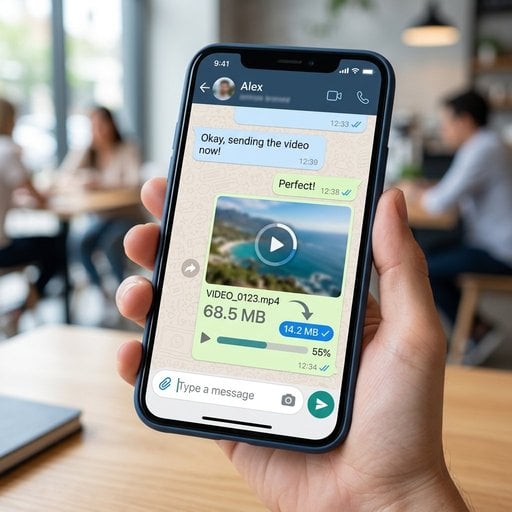
- Video: Upload to SimpleSize, target 15 MB at 720p. Result: 14.2 MB. Send as video. It plays inline in the chat, which looks professional. Alternatively, send as a document at the original compressed size if inline playback is not needed.
- PDF: Upload to SimpleSize, choose "Mobile" profile. Result: 8.1 MB. Send as document. The client can open it instantly, even on a slow mobile connection.
Total time spent compressing: under three minutes. Total time saved by the client waiting for files to download: significant. This is the practical case for compressing before sending rather than letting WhatsApp handle it.
Key Tips for Staying Under WhatsApp Limits
A few habits that make file sharing on WhatsApp consistently smoother:
- Always compress before attaching. WhatsApp's built-in compression is aggressive and unpredictable. Pre-compressing gives you a known output.
- Use the document picker for videos you care about. It bypasses the 16 MB media limit and prevents a second round of quality loss.
- Match quality to the use case. A photo being shared for approval needs more fidelity than a quick behind-the-scenes clip. Adjust compression settings accordingly.
- Check mobile file sizes on mobile. Tools like SimpleSize work in the browser on your phone, so you can compress and send without moving files to a desktop first. This is especially relevant for mobile-first workflows where everything happens on the go.
- For HEIC images from iPhones, convert to JPG first or use a tool that handles HEIC directly. WhatsApp on Android sometimes has trouble rendering HEIC files sent from iOS devices.
WhatsApp's official FAQ on file sharing confirms the current limits and lists supported formats, which is worth bookmarking since limits occasionally change across platform updates.
Conclusion
WhatsApp's file size limits are a real constraint, not a minor inconvenience. A WhatsApp video that exceeds 16 MB will either be blocked or heavily re-encoded, and the same applies to images and documents in different ways. The solution is straightforward: compress files yourself before sending, using a tool that gives you control over the output. SimpleSize handles all three file types in a browser with no software to install, and the step-by-step process for each takes under two minutes. The result is faster uploads, cleaner files on the recipient's end, and no more surprise quality loss.

Compress Your Video for WhatsApp in Seconds
SimpleSize reduces video file size without the blurry, pixelated results that WhatsApp's own compression produces. No installs, no sign-up, just results.
Try Our Free Video Compressor →
When sent through the standard photo/video picker, WhatsApp enforces a 16 MB limit and re-encodes the video automatically. If you send the video as a document instead, the limit increases significantly (up to 2 GB on some platforms) and WhatsApp does not re-compress the file.
Compress the video yourself before sending using a tool like SimpleSize, targeting a file size under 16 MB at 720p resolution. Then either send it through the media picker or use the document option to skip WhatsApp's secondary compression pass entirely.
WhatsApp automatically re-encodes images sent through the photo picker to reduce server load and delivery time. Pre-compressing your image to around 1-2 MB before sending leaves little room for WhatsApp to degrade it further, so the recipient sees a much sharper result.
WhatsApp allows documents, including PDFs, up to 100 MB. Unlike photos and videos, documents are not re-encoded by WhatsApp, so the file the recipient downloads is exactly what you sent. Compressing large PDFs before sending improves download speed on mobile connections.
Yes. SimpleSize runs entirely in a mobile browser, so you can upload, compress, and download files directly from your phone. Once the compressed file is saved to your device, you can attach it in WhatsApp immediately without switching to a desktop.