
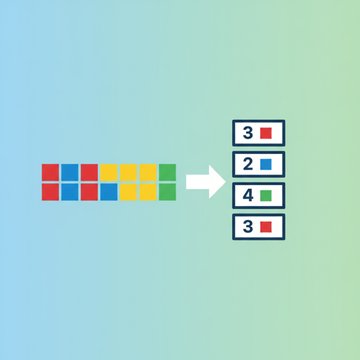

A codec is a piece of software that compresses and decompresses digital media data, and it is the hidden engine behind every video and audio file you watch, share, or store. Without a codec, a single minute of uncompressed 1080p video would eat up roughly 100 GB of storage. The codec is what makes it a manageable 200 MB instead, while keeping the picture looking sharp.
Content Table
What "Codec" Actually Means
The word "codec" is a portmanteau of co mpressor/ dec ompressor (or sometimes co der/ dec oder). It refers to an algorithm, implemented as software (and sometimes hardware), that encodes raw media data into a compressed format and then decodes it back for playback.
Think of it like a language translator. When you record a video, the codec translates the raw pixel and audio data into a compressed form your device can store efficiently. When you hit play, it translates it back in real time so your screen and speakers get what they need.
There are two main types:
- Video codecs: Handle video encoding and decoding. Examples include H.264, H.265 (HEVC), VP9, and AV1.
- Audio codecs: Handle audio encoding and decoding. Examples include AAC, MP3, Opus, and FLAC.
Codec vs. File Format: Not the Same Thing
This is the part that trips up almost everyone. A file format (like MP4, MKV, or MOV) is a container. It is the box that holds your video stream, audio stream, subtitles, and metadata together. The codec is the compression algorithm applied to the content inside that box.
One container can hold content encoded by many different codecs. For example:
| Container (Format) | Common Video Codecs Inside | Common Audio Codecs Inside |
|---|---|---|
| MP4 | H.264, H.265, AV1 | AAC, MP3 |
| MKV | H.264, H.265, VP9, AV1 | AAC, Opus, FLAC, AC3 |
| MOV | H.264, H.265, ProRes | AAC, PCM |
| WebM | VP8, VP9, AV1 | Vorbis, Opus |
So when someone says "send me an MP4," they are specifying the container. The actual codec inside that MP4 could be H.264 or H.265, and that distinction affects file size, quality, and compatibility more than the container label does.
How a Codec Compresses Video and Audio
Codecs use two broad categories of compression:
- Lossless compression: No data is discarded. The file reconstructs perfectly. FLAC (audio) and Apple ProRes (video) are examples. Files stay large but are bit-perfect.
- Lossy compression: The algorithm discards data the human eye or ear is unlikely to notice. H.264, AAC, and MP3 are all lossy. This is how you get a 2-hour movie into 4 GB.
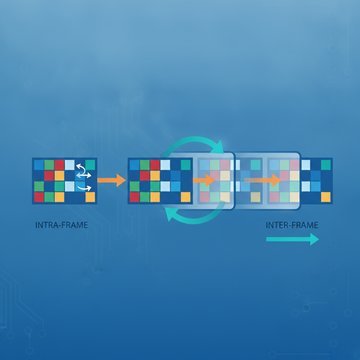
For video specifically, a compression algorithm like H.264 exploits two things:
- Spatial redundancy: Within a single frame, large areas of similar color (like a blue sky) are encoded as a pattern rather than pixel by pixel.
- Temporal redundancy: Between frames, only the parts that change get re-encoded. A talking head on a static background only needs the face region updated each frame, not the whole image.
This is why a slow, static scene compresses far better than a fast-action sports clip with lots of motion. More change between frames means more data to encode. You can read more about how this interacts with quality in this guide to video compression and how to save space without sacrificing quality.
Common Video Codecs Compared
Here is a practical video codec comparison covering the codecs you will actually run into:
| Codec | Also Known As | Efficiency | Compatibility | Best For |
|---|---|---|---|---|
| H.264 | AVC, MPEG-4 Part 10 | Good | Universal | General sharing, streaming, social media |
| H.265 | HEVC | ~50% better than H.264 | Wide but not universal | 4K streaming, storage-limited devices |
| VP9 | VP9 | Comparable to H.265 | Good (web browsers) | YouTube, web video |
| AV1 | AOMedia Video 1 | ~30% better than H.265 | Growing (newer devices) | Streaming bandwidth savings, future-proofing |
| ProRes | Apple ProRes | Low (large files) | Apple ecosystem | Professional video editing, post-production |
HEVC compression (H.265) is the sweet spot for 4K content. It delivers the same perceived quality as H.264 at roughly half the file size, which is why iPhones have defaulted to HEVC for video recording since the iPhone 7. The trade-off is that some older Android devices and Windows machines without hardware decoders can struggle to play it smoothly.
AV1 is the newest major codec and was developed by the Alliance for Open Media as a royalty-free alternative to HEVC. Netflix, YouTube, and Meta all use it for streaming. Encoding is slow (AV1 files take much longer to encode than H.264), but playback on modern hardware is fast.
The relationship between codec and file size is closely tied to bitrate. If you want to understand how bitrate settings interact with codec efficiency, this deep-dive on video bitrate and how it controls file size and quality explains it well.
Audio Codecs You Will Actually Encounter
- AAC (Advanced Audio Coding): The successor to MP3. Used in MP4 files, Apple Music, YouTube, and most streaming services. Better quality than MP3 at the same bitrate.
- MP3 (MPEG-1 Audio Layer III): The classic. Universally compatible but less efficient than AAC. Still common for music distribution.
- Opus: Royalty-free, excellent for voice and music at low bitrates. Used in WebM containers, Discord, and VoIP apps.
- FLAC (Free Lossless Audio Codec): Lossless compression, so file sizes are large but audio is bit-perfect. Preferred by audiophiles and archivists.
- PCM / WAV: Uncompressed audio. Used in professional production and Blu-ray. Huge files, perfect quality.
Why the Codec Choice Matters for Your Files
The codec affects four things that directly impact your workflow:
- File size: A 10-minute 1080p video can be 800 MB in H.264 or around 400 MB in H.265 at equivalent quality.
- Quality: At the same file size, a more efficient codec produces visibly better results. AV1 at 2 Mbps looks noticeably sharper than H.264 at 2 Mbps.
- Compatibility: Uploading a HEVC video to a platform that only accepts H.264 will either fail or get re-encoded (and re-encoding always loses quality).
- Playback performance: Decoding AV1 in software on a 2015 laptop will spike your CPU. The same file on a 2022 phone with a hardware AV1 decoder plays without a hitch.
Platform upload limits interact with codec efficiency too. A more efficient codec means your file fits within a platform's size cap without needing to sacrifice resolution or quality. For a quick reference on what those limits actually are, check the complete cheat sheet for every major platform's file size limit.
Choosing the Right Codec for Your Situation
Here is a quick decision guide:
- Sharing on social media or via messaging apps: Use H.264 inside an MP4 container. It plays everywhere without any compatibility surprises.
- Storing 4K footage on a hard drive: Use H.265 (HEVC) to cut storage needs roughly in half versus H.264.
- Publishing video to a website: VP9 or AV1 in a WebM container gives better quality per kilobyte, which helps page load times. H.264 in MP4 is the safe fallback for older browsers.
- Professional video editing: Record or export in ProRes or a high-bitrate H.264 so your editing software has clean data to work with.
- Archiving footage you never want to re-encode: Use a lossless codec like FFV1 or ProRes 4444 so future re-exports start from a perfect source.
The
IETF's RFC 6381
formally defines how codec identifiers are declared inside media containers, which is why you sometimes see strings like
avc1.42E01E
in streaming manifests. These tell the browser exactly which codec profile and level is in use before it even downloads a frame.
If you need to switch a file from one codec to another, for example converting a HEVC clip to H.264 so it plays on an older TV, you need a video converter. SimpleSize's free online video converter handles exactly this: you upload your file, pick your output format (MP4, MOV, MKV, WebM, or GIF), select a codec (H.264, VP9, or AV1), and download the result. No account needed, and the daily limit resets at midnight UTC so you can convert up to 10 files per day for free.

Compress a video with the codec that fits
Pick H.264, H.265 or AV1 and a quality, and get a smaller video in the same format.
Try Free Video Compression →
You will typically see a black screen or a "codec not supported" error while the audio plays fine (or vice versa). This happens because the video and audio streams inside a container can use different codecs, and your player may support one but not the other. Installing the missing codec pack or converting the file to a more compatible format like H.264 in MP4 solves it.
In terms of compression efficiency, yes. HEVC compression delivers roughly the same visual quality as H.264 at about half the bitrate, which means smaller files. But "better" depends on your use case. H.264 has near-universal hardware support, so if you are sharing files with people on older devices or uploading to platforms that transcode to H.264 anyway, the extra compression of H.265 offers no practical benefit and can cause playback issues.
No. Renaming a file extension only changes the label on the container, not the codec inside it. The video and audio streams remain encoded with the original codec. A true format or codec change requires actual re-encoding using a converter tool, which decodes the original data and re-encodes it with the new codec settings.
AV1 achieves its superior compression by using far more complex analysis algorithms. It evaluates more candidate prediction modes per block of pixels, which takes significantly more CPU time. Encoding a 1-minute clip in AV1 can take 10 to 50 times longer than the same clip in H.264. Dedicated hardware encoders (like those in recent Intel, AMD, and Nvidia chips) close this gap significantly, but software encoding is still slow.
An MP4 codec refers to the video encoding algorithm used inside an MP4 container file. The most common choices are H.264 (AVC) and H.265 (HEVC). For uploading to social platforms, email, or messaging apps, H.264 is the safest choice because every major platform and device supports it without any conversion step. H.265 is better for storage or platforms that explicitly support it, like Apple TV or modern Samsung TVs.
Not if the source is already lossy-encoded. Converting from H.264 to H.265 always involves decoding (which is lossless) and then re-encoding (which introduces a new round of lossy compression). The quality loss is usually small at high bitrates but is technically unavoidable. The only way to avoid any loss is to start from a lossless or uncompressed source, or to use a lossless target codec like FFV1 or ProRes.