

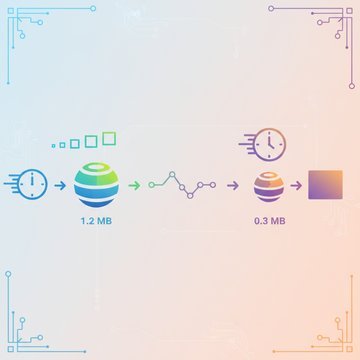


Knowing how to remove EXIF data from your photos is one of the simplest things you can do to protect your privacy and shrink your image files at the same time. EXIF data (Exchangeable Image File Format) is a block of hidden metadata baked into every photo your camera or smartphone takes, and it can contain far more personal information than most people realize.
Every time you share a photo online without stripping that metadata first, you may be handing strangers your exact GPS coordinates, the device you used, and even the time you pressed the shutter. Here is what that data actually contains, why it matters, and exactly how to get rid of it.
Content Table
What Is EXIF Data and What Does It Store?
EXIF is a standard format defined by the Camera and Imaging Products Association (CIPA) that specifies how metadata gets embedded inside image files, particularly JPEG and TIFF formats. Think of it as a data receipt stapled to every photo, recording the conditions under which the shot was taken.
Here is a sample of what a typical smartphone photo carries inside its EXIF block:
- GPS coordinates: Latitude, longitude, and sometimes altitude, accurate to within a few meters
- Timestamp: The exact date and time the photo was taken
- Device info: Camera make and model (e.g., "Apple iPhone 15 Pro")
- Camera settings: Aperture, shutter speed, ISO, focal length, flash status
- Software version: The OS or firmware that processed the image
- Orientation: How the phone was held when the photo was taken
- Thumbnail: A small embedded preview of the image itself
- Copyright and author fields: Sometimes pre-filled by camera firmware or photo apps
Beyond EXIF, images can also carry IPTC (press/editorial metadata like captions and keywords) and XMP (Adobe's extensible format used by Lightroom and Photoshop). Together, all three are what people usually mean when they talk about "image metadata."
Why Location Data in Photos Is a Real Privacy Risk
Photo location tracking is not theoretical. There have been documented cases where people were located, stalked, or identified purely through GPS coordinates embedded in photos they shared publicly. In 2012, anti-whaling activists used EXIF data from photos posted by a Japanese whaling fleet to track the ships' exact positions. More personally, posting a photo of your home, your child's school, or your regular coffee spot with GPS metadata intact tells anyone who downloads that image exactly where those places are.
The risks are concrete:
- A photo posted to a forum or classified ad site (like Craigslist) can reveal your home address
- A photo sent via email or messaging apps that do not strip metadata exposes your location to the recipient
- Journalists, activists, whistleblowers, and domestic abuse survivors face serious safety risks if their location leaks through image metadata
- Device model information can help attackers narrow down known vulnerabilities in your specific hardware or OS version
The privacy concerns go beyond location. Timestamps can establish routines. Camera model info can link photos across different platforms. Even the embedded thumbnail can sometimes contain a version of the image that was cropped or edited out of the final photo.
How Metadata Affects File Size
Metadata removal is not just a privacy measure. It is also a practical way to reduce image file sizes, especially when you are sending many photos or optimizing images for the web.
A typical EXIF block in a smartphone JPEG runs between 5 KB and 50 KB. That sounds small, but consider:
- A batch of 100 product photos with heavy metadata could carry 1-5 MB of pure overhead
- Web pages that load dozens of images accumulate that overhead on every page load
- RAW files converted to JPEG by editing software can carry particularly bloated metadata blocks, including full editing histories
Stripping metadata is one of the steps covered in mobile-first image optimization, alongside compression and format conversion. It is a quick win that costs you nothing visually.
How to Remove EXIF Data: Platform-by-Platform Guide
Windows
Windows has a built-in metadata removal tool that most people never find:
- Right-click the image file and select Properties
- Click the Details tab
- At the bottom, click "Remove Properties and Personal Information"
- Choose either "Create a copy with all possible properties removed" or select specific fields to remove
- Click OK
This works for JPEG files natively. It does not handle HEIC or RAW formats without additional software.
macOS
macOS does not have a one-click metadata strip in Finder, but Preview gives you partial control:
- Open the image in Preview
- Go to Tools > Show Inspector (or press Cmd+I)
- Click the GPS tab and use "Remove Location Info" to delete GPS data specifically
- Save the file
For full metadata removal on macOS, the command-line tool ExifTool (covered below) is the most thorough option.
iPhone (iOS)
iOS 13 and later lets you remove location data before sharing directly from the Photos app:
- Open the photo in Photos
- Tap the share button
- At the top of the share sheet, tap Options
- Toggle off Location
- Proceed with sharing
This only removes location data for that specific share action. The original file in your library retains its GPS coordinates. To disable location tagging entirely for new photos, go to Settings > Privacy > Location Services > Camera and set it to "Never."
Android
Android's approach varies by manufacturer, but on stock Android (Pixel phones running Android 12+):
- Open the photo in Google Photos
- Tap the three-dot menu and select Edit
- Alternatively, when sharing, look for a location toggle in the share options
To disable GPS tagging for all new photos, open the Camera app, go to Settings , and turn off Location tags (or "Save location," depending on your device).
Command Line with ExifTool (Windows, macOS, Linux)
ExifTool by Phil Harvey is the most powerful and widely trusted free tool for metadata removal. It handles JPEG, HEIC, PNG, TIFF, RAW formats, and more.
To strip all metadata from a single file:
exiftool -all= photo.jpgTo strip all metadata from every JPEG in a folder (and keep the originals with a "_original" suffix):
exiftool -all= *.jpgTo remove all metadata and delete the backup files ExifTool creates:
exiftool -all= -overwrite_original photo.jpgTo remove only GPS data while keeping other metadata intact:
exiftool -gps:all= photo.jpgAdobe Lightroom and Photoshop
When exporting from Lightroom Classic, uncheck "Include: All Metadata" in the Export dialog, or select "Copyright Only" to keep just your authorship info. In Photoshop, use File > Export > Export As and uncheck the metadata option in the export settings.
What Social Media Platforms Actually Do With Your Metadata
Many people assume that uploading to Instagram or Twitter automatically protects them. The reality is more nuanced:
| Platform | Strips EXIF from public downloads? | Retains metadata internally? |
|---|---|---|
| Yes, on re-downloads | Yes, per their privacy policy | |
| Twitter / X | Yes, since 2012 | Likely yes |
| Yes, on public photos | Yes, explicitly | |
| Yes (also compresses heavily) | Unknown / not disclosed | |
| Signal | Yes, by default (optional) | No (end-to-end encrypted, no server retention) |
| Email (Gmail, Outlook) | No | Full metadata delivered to recipient |
| Dropbox / Google Drive | No | Full metadata preserved |
The key takeaway: platforms stripping metadata on public downloads does not mean they do not hold it. If you are sharing photos via email, cloud storage, or messaging apps other than Signal, the recipient gets the full metadata package unless you strip it first.
For more context on how file sharing works across platforms, see this guide on optimizing files for WhatsApp , which covers what the app actually does to your images during transmission.
Safe Photo Sharing: Best Practices
Stripping metadata is most effective when it becomes a habit rather than a one-off fix. Here are the habits worth building:
- Disable GPS tagging at the camera level for any photos you know you will share publicly. This prevents the data from being created in the first place.
- Strip before you send, not after. Once a photo is delivered to a recipient with metadata intact, you cannot un-send that information.
- Use ExifTool for bulk jobs. If you are publishing a batch of product photos, a real estate listing, or a press kit, run the whole folder through ExifTool before uploading anywhere.
- Check your work. After stripping, drag the file to Jeffrey's Exif Viewer or a similar tool to confirm the metadata is actually gone.
- Remember non-GPS metadata matters too. Device model, software version, and editing history can still identify you or your workflow even without location data.
- For professional photographers: Consider keeping a "metadata template" in Lightroom that includes your copyright info but nothing else, and apply it on every export.
If you are already thinking about image optimization more broadly, metadata removal pairs naturally with compression. Smaller files with no location baggage are the goal, and you can read more about the full picture in our guide on reducing file sizes for mobile users.

Compress images and strip the metadata bloat in one step
Our free image compression tool reduces file size without sacrificing visual quality, making it easy to share photos without carrying unnecessary metadata overhead. Smaller files, cleaner sharing.
Compress Your Image →
No. EXIF and other metadata are stored separately from the actual pixel data in the image file. Stripping them is a completely lossless operation. The image looks exactly the same before and after removal. The only thing that changes is the file size, which gets slightly smaller once the metadata block is gone.
Yes, easily. On Windows, right-click the file, select Properties, then the Details tab. On macOS, open the image in Preview and press Cmd+I. Online, you can drag any image to Jeffrey's Exif Viewer (jeffreysexifviewer.com) to see the full metadata block. ExifTool can also read and display all metadata with the command
exiftool photo.jpg
.
JPEG and TIFF are the primary formats that use the EXIF standard, and HEIC (the default iPhone format) also embeds EXIF-compatible metadata. PNG files can carry metadata in a different chunk format. WebP and AVIF support metadata embedding too. RAW formats from cameras (like CR2, NEF, ARW) carry extensive metadata. GIF is the main common format that generally does not embed EXIF data.
Both platforms strip EXIF data from photos that other users can download, so a stranger downloading your Instagram photo will not see your GPS coordinates. However, both companies retain the original metadata on their servers and may use it internally for ad targeting, content moderation, and other purposes per their privacy policies. If you want zero exposure, strip the data before uploading.
The most effective prevention is disabling location access for your camera app at the OS level. On iPhone, go to Settings, Privacy, Location Services, Camera, and select Never. On Android, open your Camera app settings and turn off Location tags. This stops GPS data from being written in the first place. Other metadata like device model and timestamp will still be recorded, but GPS is the most sensitive field for most people.
Yes, in several ways. Your camera or phone model combined with a consistent shooting style can link photos across platforms. Timestamps can establish your daily routine or time zone. Serial number fields (present in some camera firmware) can uniquely identify your specific device. If you are a journalist, activist, or anyone in a sensitive situation, stripping all metadata, not just GPS, is the safer approach.