

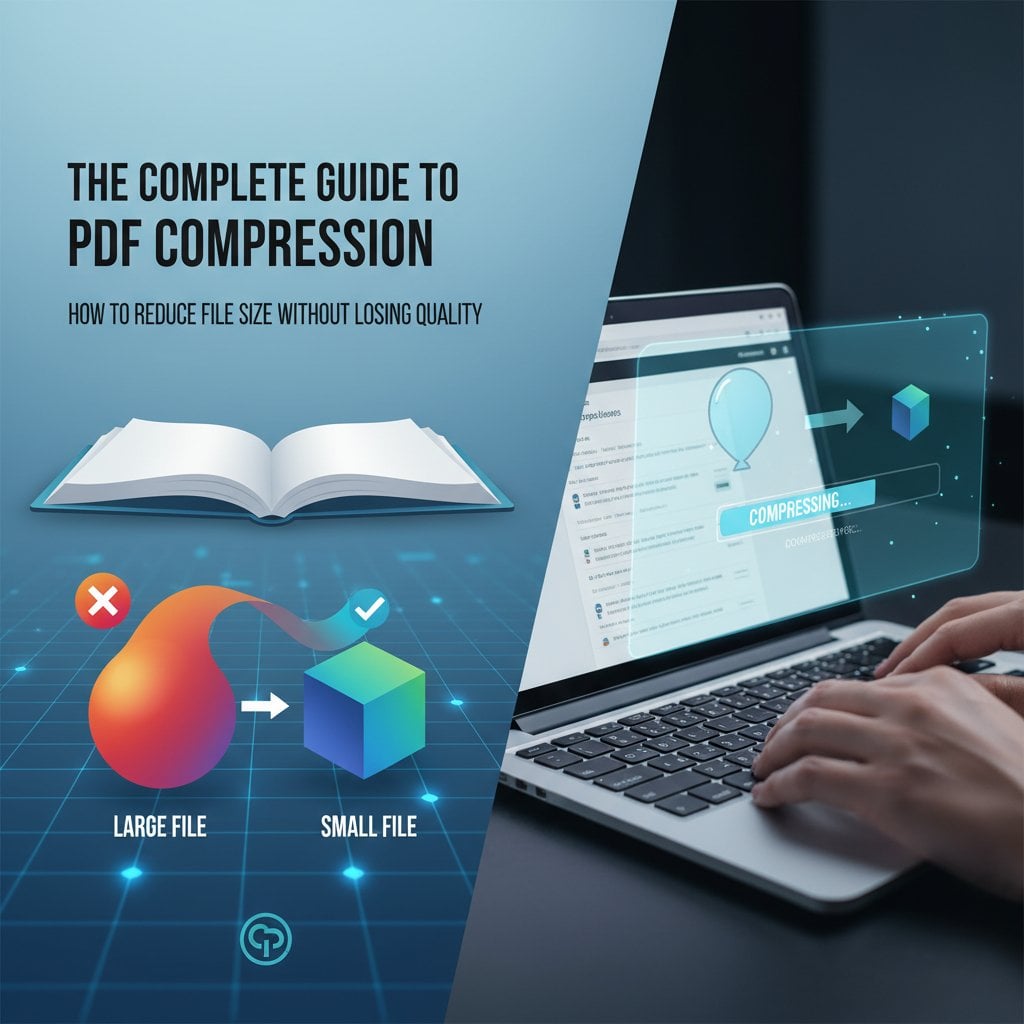
Managing large PDF files can be frustrating, especially when you need to email documents or upload them to websites with size restrictions. PDF compression is the solution that helps you reduce file sizes while maintaining the quality you need. Whether you're dealing with image-heavy reports, scanned documents, or text-based files, understanding how to compress PDFs effectively can save you time, storage space, and bandwidth. This guide will walk you through everything you need to know about reducing PDF file sizes without sacrificing readability or visual quality.
Why PDF File Size Matters
Large PDF files create numerous challenges in both personal and professional settings. Email servers typically limit attachment sizes to 25MB or less, making it impossible to send bulky documents. Cloud storage costs increase with larger files, and slow upload or download speeds frustrate users with limited bandwidth.
Compressed PDFs offer significant advantages. They transfer faster via email and file-sharing platforms, consume less storage space on devices and servers, and load more quickly in web browsers and PDF readers. For businesses, smaller file sizes mean reduced server costs and improved user experience on websites where PDFs are shared or downloaded.
Understanding PDF Compression Methods
PDF compression works through two primary methods, each suited for different types of content. Understanding these approaches helps you choose the right compression strategy for your specific needs.
Lossless Compression
Lossless compression reduces file size without removing any data from the original document. This method works by identifying and eliminating redundancies in how data is stored. When you decompress a losslessly compressed PDF, you get back exactly what you started with, pixel for pixel and character for character.
This approach works best for text-heavy documents, forms, and files with simple graphics. The compression ratios are typically modest, usually reducing file sizes by 10-30%. However, the complete preservation of quality makes lossless compression ideal for legal documents, contracts, and any files where accuracy is critical.
Lossy Compression
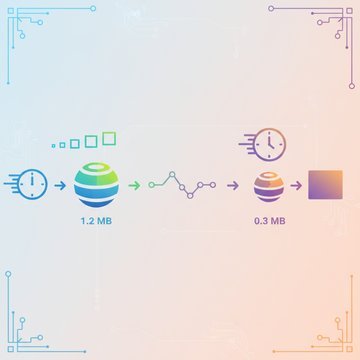
Lossy compression achieves much higher compression ratios by permanently removing some data from the file. This method focuses on images and graphics, reducing their resolution or quality in ways that are often imperceptible to the human eye. According to data compression principles, lossy methods can reduce file sizes by 50-90% or more.
The key is finding the right balance between file size and acceptable quality. For presentations, marketing materials, and general-purpose documents, moderate lossy compression typically provides excellent results. However, avoid heavy lossy compression for documents requiring precise image details, such as architectural plans or medical imaging.
How to Compress PDFs: Practical Methods
Multiple approaches exist for compressing PDF files, each with distinct advantages depending on your situation and technical requirements.
Online PDF Compression Tools
Web-based compression tools offer the quickest solution for occasional needs. You simply upload your PDF, select compression settings, and download the reduced file. These tools require no software installation and work on any device with internet access.
However, consider security implications before uploading sensitive documents to third-party servers. Many services delete files after processing, but confidential business or personal documents may require offline solutions. Online tools also depend on internet speed, which can be limiting for very large files.
Desktop Software Solutions
Desktop applications like Adobe Acrobat Pro, Preview on Mac, and various third-party programs provide more control over compression settings. These tools process files locally, ensuring privacy for sensitive documents.
Adobe Acrobat Pro offers advanced optimization features, allowing you to customize compression for images, fonts, and other elements separately. The "Reduce File Size" function provides preset options for different use cases, from screen viewing to high-quality printing.
Built-in Operating System Tools
Both Windows and Mac operating systems include basic PDF compression capabilities. Mac users can use Preview's "Export" function with a Quartz Filter to reduce file sizes. Windows users can print to PDF with reduced quality settings through various PDF printer drivers.
These native solutions work well for simple compression needs without additional software. However, they typically offer less control over specific compression parameters compared to dedicated tools.
Key Takeaways:
- Choose lossless compression for documents requiring perfect accuracy and lossy compression for files where some quality reduction is acceptable
- Online tools provide convenience for non-sensitive documents, while desktop software offers better control and privacy
- Balance file size reduction with quality requirements based on your document's intended use
- Test compressed files before distributing them to ensure text remains readable and images meet your quality standards
Best Practices for PDF Compression
Start by analyzing your document's content. Image-heavy PDFs benefit most from compression, while text-only documents may already be relatively small. Identify the largest components using PDF analysis tools to target your compression efforts effectively.
Always keep original copies before compressing, especially when using lossy methods. This allows you to return to the source if compression results are unsatisfactory. Test compressed files by opening them on different devices and PDF readers to ensure compatibility and acceptable quality.
For documents with mixed content, consider selective compression. Apply aggressive compression to decorative images while preserving higher quality for critical diagrams or charts. Many advanced tools allow page-by-page or element-by-element compression control.
When compressing scanned documents, ensure the resolution remains sufficient for readability. A resolution of 150-300 DPI typically works well for most business documents, while 72-150 DPI suffices for web viewing. According to image resolution standards, these ranges balance quality and file size effectively.
Conclusion
Effective PDF compression requires understanding the trade-offs between file size and quality. By choosing the appropriate compression method for your specific needs, you can significantly reduce file sizes while maintaining acceptable quality levels. Whether you use online tools for quick tasks or desktop software for advanced control, the key is testing results and keeping original files as backups. With these techniques, you can efficiently manage PDF files for sharing, storage, and distribution across all your personal and professional projects.
FAQ
Lossless compression reduces file size without removing any data, allowing perfect reconstruction of the original file. Lossy compression permanently removes some data, typically from images, to achieve much greater size reductions. Lossless is ideal for documents requiring perfect accuracy, while lossy works well for general-purpose files where minor quality reduction is acceptable.
With lossless compression, you can typically reduce file sizes by 10-30% without any quality loss. Using moderate lossy compression on image-heavy PDFs can achieve 50-70% reduction with minimal perceptible quality loss. The actual results depend on your document's content, with image-heavy files offering more compression potential than text-only documents.
While many reputable online tools claim to delete files after processing, uploading sensitive or confidential documents to third-party servers always carries some risk. For sensitive business documents, legal files, or personal information, use desktop software or built-in operating system tools that process files locally without uploading them to external servers.
For most business documents and general reading, 150-300 DPI provides good readability while keeping file sizes manageable. For PDFs intended primarily for web viewing, 72-150 DPI is usually sufficient. If your document contains fine details like small text or technical diagrams, maintain higher resolutions around 300 DPI to preserve clarity.
Most compression tools require you to remove password protection before compressing encrypted PDFs. You'll need the password to unlock the file, compress it, and then re-apply encryption afterward. Some advanced desktop applications can compress protected PDFs directly if you provide the password, but this feature isn't universally available in all compression tools.