

If you're wondering why is my zip file still too big after compressing it, the short answer is that ZIP compression only works well on certain types of files. Many modern file formats are already compressed internally, so zipping them again produces almost no size reduction. Understanding which files compress well (and which don't) is the fastest way to fix the problem.
Content Table
How ZIP Compression Actually Works
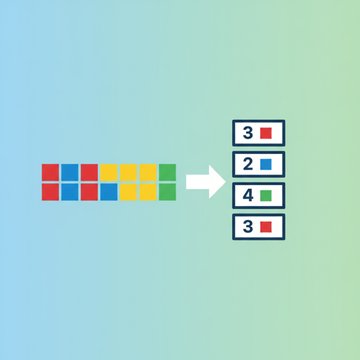
ZIP uses a lossless algorithm called DEFLATE (a combination of LZ77 and Huffman coding). The algorithm scans your file for repeated patterns and replaces them with shorter references. A plain text file full of repeated words like "the", "and", "a" compresses dramatically because there are thousands of repeated byte sequences to reference. A JPEG photo, on the other hand, already has those redundancies eliminated by its own internal compression, so DEFLATE finds almost nothing to work with.
This is the core reason your zip file is not compressing the way you expected. The algorithm needs raw redundancy to eliminate. No redundancy, no compression.
File Types That Refuse to Shrink
These formats are already compressed or encoded in a way that leaves almost zero redundancy for ZIP to exploit:
- JPEG, PNG, WebP, HEIC (images): JPEG uses lossy DCT compression. PNG uses DEFLATE itself. Zipping either format typically saves under 1%.
- MP3, AAC, OGG, FLAC (audio): MP3 and AAC are heavily compressed. FLAC is lossless but already entropy-coded. See why WAV files are the exception here.
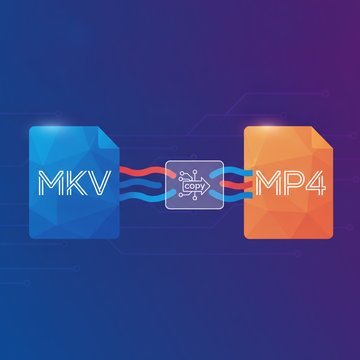
- MP4, MOV, MKV (video): These containers hold H.264, H.265, or AV1 streams that are already compressed to near-entropy. Zipping a 2 GB MP4 might save 5 MB at best.
- PDF: Most PDFs contain embedded compressed images and font streams. A scanned PDF with JPEG images inside it will barely shrink.
- DOCX, XLSX, PPTX: These are actually ZIP files already. Microsoft's Open XML format bundles XML and media into a ZIP container. You are literally zipping a zip.
- ZIP, RAR, 7z, GZ: Compressing an existing archive adds a few hundred bytes of overhead and nothing else.
Understanding ZIP Compression Ratio
The zip compression ratio is the relationship between the original file size and the compressed output size. It is usually expressed as a percentage saved or as a ratio like 3:1.
| File Type | Typical ZIP Compression Ratio | Why |
|---|---|---|
| Plain text (.txt, .csv, .log) | 60-80% reduction | High redundancy, repeated words and patterns |
| HTML / XML / JSON | 70-85% reduction | Repeated tags and key names compress extremely well |
| BMP / uncompressed TIFF | 50-70% reduction | Raw pixel data with spatial redundancy |
| WAV / AIFF (uncompressed audio) | 15-30% reduction | Some redundancy in PCM waveforms |
| JPEG / PNG / MP3 / MP4 | 0-2% reduction | Already compressed, no redundancy left |
| DOCX / XLSX / PPTX | 0-5% reduction | Already a ZIP container internally |
| Executable (.exe, .dll) | 30-60% reduction | Code sections have moderate redundancy |
If your archive contains mostly JPEGs and MP4s, the final ZIP will be almost identical in size to the sum of the originals. That is not a bug in your zip tool. That is physics.
The Nested Archives Trap
Nested archives are a surprisingly common reason people find their zip file still too big. This happens when you zip a folder that already contains ZIP, RAR, or 7z files. The outer ZIP has to store those inner archives as-is, and it cannot compress them further. In fact, the overhead from the ZIP directory structure adds a few extra kilobytes on top.
The same logic applies to DOCX and XLSX files. If you zip a folder of 50 Excel spreadsheets, the resulting archive will be almost exactly as large as the folder itself, because each .xlsx is already a compressed ZIP container.
Wrong Compression Settings
Most operating systems use a "Normal" or "Default" compression level when you right-click and compress. This is a middle-ground setting that trades speed for compression ratio. Switching to "Maximum" or "Ultra" compression in a dedicated tool can help, but only on file types that have remaining redundancy. On already-compressed files, even Ultra compression returns 0%.
A few specific settings mistakes that cause a zip file not compressing properly:
- Store mode (level 0): Some tools default to "Store" for large files, which packages files with no compression at all. Check your tool's settings for a compression level slider.
- Encryption overhead: Adding AES-256 encryption to a ZIP slightly increases the file size because of the encryption header and padding blocks.
- Split archive settings: Splitting a ZIP into volumes (zip.001, zip.002) does not change the total compressed size. It just divides it across multiple files.
- Per-file compression toggle: Tools like 7-Zip let you exclude specific file types from compression. If someone previously configured your tool to skip .jpg files, they will be stored uncompressed inside the archive.
How to Actually Reduce the Size
Since ZIP cannot compress already-compressed content, the real savings come from reducing the source files before you archive them. Here is what actually works:
- Compress images before zipping: Convert large PNGs or BMPs to JPEG or WebP first. A 5 MB BMP can become a 200 KB JPEG with no visible quality loss for most use cases.
- Compress PDFs before zipping: PDFs with embedded high-resolution scans can be dramatically reduced. The complete PDF compression guide covers exactly how to do this.
- Re-encode video at a lower bitrate: A 1 GB MP4 at 8 Mbps can be re-encoded to 200 MB at 2 Mbps with minimal visible difference for most viewing scenarios.
- Remove metadata from images: EXIF data can add hundreds of kilobytes to a photo batch. Stripping it before archiving helps when dealing with hundreds of images.
- Use a different archive format: 7z with LZMA2 compression consistently outperforms ZIP on compressible content by 10-40%.
- Delete what you do not need: Thumbnails, cache files, .DS_Store, and Thumbs.db files can add up in large project folders.
If the goal is to get a file small enough to email, understanding why email attachment limits exist and what your options are will save you a lot of frustration.
When ZIP Is Not the Right Tool
ZIP is convenient and universally supported, but it is not the most efficient compression format available. If reducing zip file size to the absolute minimum matters to you, consider these alternatives:
- 7z (7-Zip): Uses LZMA2, which has a much larger dictionary and better pattern matching than DEFLATE. On a folder of mixed document types, 7z routinely produces archives 20-40% smaller than ZIP.
- Brotli / Zstandard: Modern formats used in web servers and data pipelines. Zstandard in particular is extremely fast and compresses better than DEFLATE at equivalent speeds.
- Tar + Gzip / Bzip2 / XZ: On Linux and macOS, tar.gz (gzip) and tar.xz (XZ/LZMA) are common. XZ produces the smallest archives but is very slow to compress.
For a detailed side-by-side look at how different tools perform on real files, the 7-Zip vs WinRAR comparison breaks down compression ratios, speeds, and format support across common scenarios.
If you are hitting a specific platform's upload limit rather than trying to reduce size in general, check the complete file size limit cheat sheet to understand exactly what ceiling you are working against and which workarounds apply.

Stop fighting a zip file that is still too big
When your zip file is not compressing because of images, PDFs, or videos inside it, the fix is to reduce those source files first. Our free compression tools help you shrink images, PDFs, and more before you archive them, so your final ZIP is actually smaller.
Try Our Free Tools →
This almost always means your folder contains already-compressed files like JPEGs, MP4s, MP3s, or Office documents (DOCX, XLSX). ZIP's DEFLATE algorithm needs redundant byte patterns to work with. When those patterns are already eliminated by the file's own internal compression, ZIP has nothing to reduce and the archive ends up nearly the same size as the originals.
It helps significantly on compressible files like plain text, source code, XML, and uncompressed images. On already-compressed formats like JPEG, MP3, or MP4, even Maximum or Ultra settings produce virtually zero improvement. The compression level only controls how hard the algorithm searches for patterns. If there are no patterns, more effort still yields nothing. For how the two tools and their compression levels stack up on real files, see the 7-Zip vs WinRAR comparison.
7z uses the LZMA2 algorithm with a much larger compression dictionary than ZIP's DEFLATE, so it produces smaller archives on compressible content, often 20-40% smaller on mixed document folders. However, 7z is slower to compress and decompress, and not every system can open .7z files natively without installing 7-Zip. ZIP remains the better choice when compatibility matters more than size.
Not through re-zipping. The only effective approach is to extract the files, compress or re-encode the heavy assets (resize images, lower video bitrate, compress PDFs), and then re-create the archive. Trying to zip the existing ZIP or switch to a different archive format on already-compressed media will save almost nothing. The savings come from the source files, not the archive wrapper.
Pre-process the heavy, compressible files before archiving. Convert BMP or uncompressed TIFF images to JPEG or WebP. Strip EXIF metadata from photos. Compress PDFs to reduce embedded image resolution. For the archive itself, use 7-Zip with LZMA2 at High or Maximum compression. Then exclude already-compressed formats like JPEG and MP4 from compression inside the archive using 7-Zip's per-extension filter to save processing time.
DOCX and XLSX (and PPTX) are already ZIP archives. Microsoft's Open XML format stores your document content as a collection of compressed XML files and embedded media inside a ZIP container. When you zip a .docx file, you are zipping a ZIP. The outer archive adds a small amount of structural overhead and produces almost no size reduction. This is one of the most common causes of a zip file not compressing as expected.