

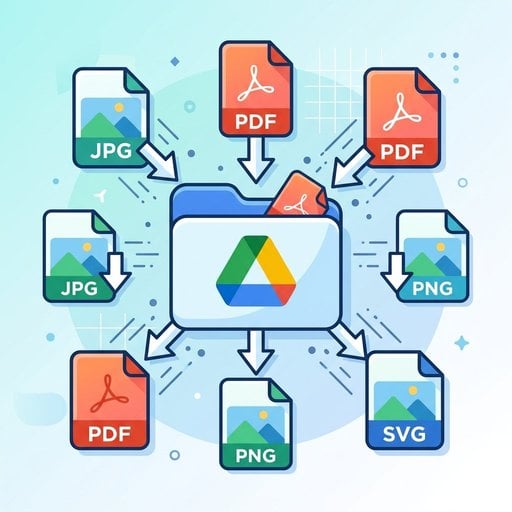
If you've ever hit Google Drive's 15 GB free storage limit, you know the frustration. One of the fastest ways to reclaim that space is to compress images for Google Drive before uploading them. A single uncompressed photo from a modern smartphone can exceed 5 MB. Multiply that by hundreds of vacation shots, project assets, or scanned documents, and your storage fills up faster than expected. This guide walks you through exactly how to reduce file sizes for photos, PDFs, and other documents - with real numbers, practical steps, and a concrete example - so you can free up Google Drive space without sacrificing the files you actually need.
Key Takeaways:
- Compressing images before upload can reduce file sizes by 60-80% without visible quality loss.
- Google Drive's free storage limit is 15 GB, shared across Drive, Gmail, and Google Photos.
- PDFs, JPEGs, and PNGs each require a slightly different compression approach.
- Using a free image compressor online is the fastest way to batch-reduce file sizes before uploading.
Content Table
Why File Size Matters for Google Drive
Google Drive gives every account 15 GB of free storage - but that quota is shared between Drive, Gmail, and Google Photos. It sounds generous until you realize that a single folder of RAW photos or a week's worth of scanned receipts can consume several gigabytes in one go.
Understanding the Google Drive file size limit also matters for sharing. Files larger than a certain threshold take longer to preview, generate errors during upload on slow connections, and frustrate collaborators who need to download them. Reducing file sizes before upload is not just about storage - it's about making your workflow faster and more reliable.
According to Google's official Drive documentation, individual file upload limits vary by file type (up to 5 TB for most files), but the 15 GB free storage cap is what most users hit first. Compressing files before upload is the most straightforward way to stay within that limit.
To reduce Google Drive storage usage, you have two options: delete files you no longer need, or compress the ones you want to keep. Compression is almost always the smarter choice.
How to Compress Images for Google Drive
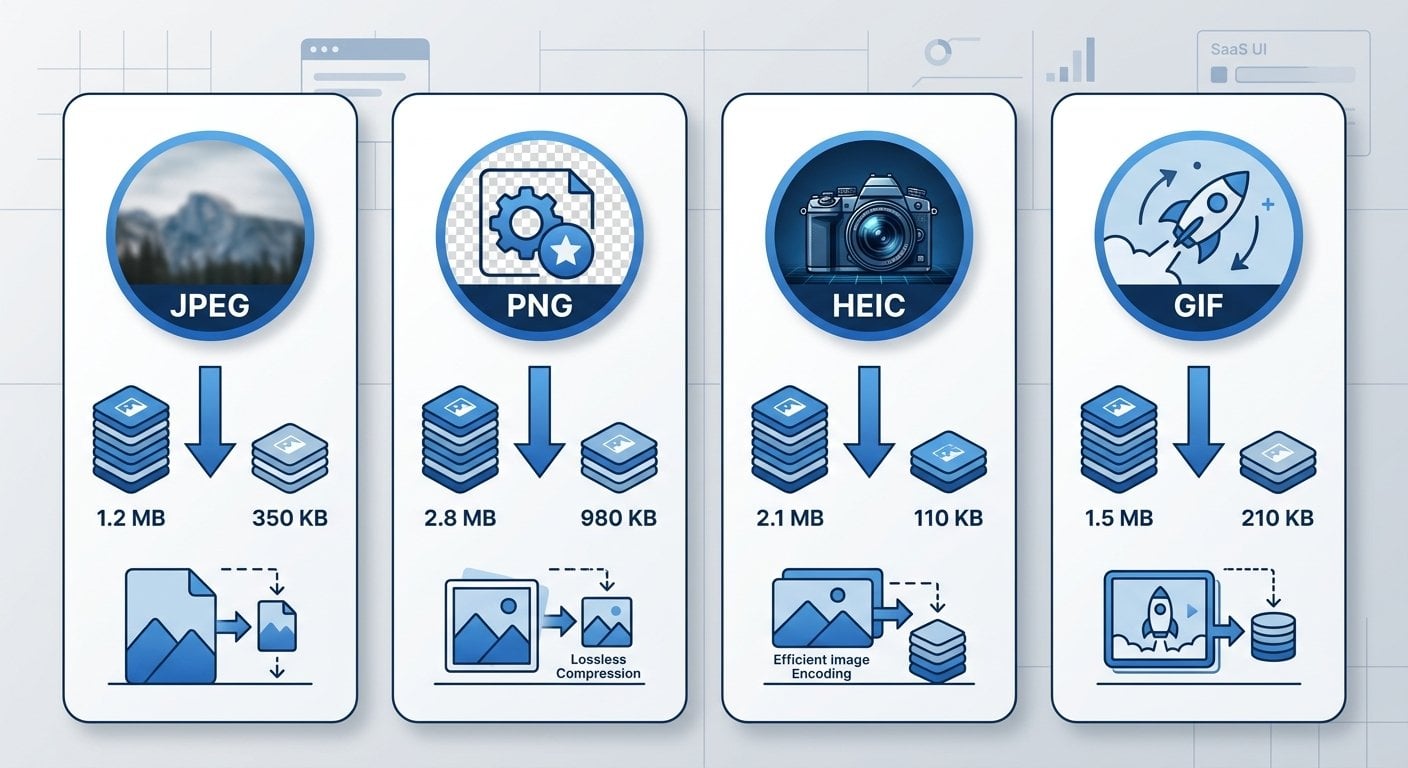
Images - especially JPEGs, PNGs, and HEICs from smartphones - are typically the biggest culprits behind bloated Drive storage. Here's how to handle each format effectively.
JPEG Images
JPEG is already a lossy format, but most cameras and phones save at very high quality settings (90-100%). Dropping the quality to 75-80% is virtually invisible to the human eye and can cut file size by 50-70%. Use a free image compressor online like SimpleSize's JPEG compressor to batch-process files before uploading them to Drive.
PNG Images
PNGs are lossless by default, which means they can be very large - especially screenshots or graphics with transparency. You can compress PNGs using lossless optimization (which removes metadata and redundant data) or convert them to JPEG if transparency isn't needed. For web-ready assets, consider converting to modern formats like AVIF using SimpleSize's AVIF compressor, which can reduce file sizes dramatically compared to PNG.
HEIC Images (iPhone/iOS)
HEIC files from iPhones are already compressed, but they aren't always compatible with all Google Drive viewers. Converting and compressing them via SimpleSize's HEIC compressor ensures compatibility and often reduces the file size further before upload.
GIF Files
Animated GIFs can be surprisingly large. If you're storing GIFs in Drive for presentations or shared projects, running them through SimpleSize's GIF compressor before upload can reduce sizes significantly without affecting playback quality.
For a deeper look at optimal settings per format, see our guide on Best Image Compression Settings for Web and Social Media in 2026.
How to Compress PDFs for Google Drive Upload
PDFs are the second most common source of storage bloat in Google Drive. A single PDF with embedded high-resolution images can easily exceed 20-30 MB. Learning how to compress PDF for Google Drive upload is a skill worth building if you regularly store reports, contracts, or scanned documents.
The key insight with PDFs is that most of the file size comes from embedded images, not text. When you compress a PDF, you're mostly recompressing those internal images at a lower resolution. The text and layout remain intact.
Here's a quick process to follow:
- Identify oversized PDFs - In Google Drive, sort your files by size (click "Storage" in the left sidebar) to find the biggest offenders.
- Download and compress - Use a dedicated PDF compression tool to reduce the file. Our Complete Guide to PDF Compression covers the best methods and tools in detail.
- Re-upload the compressed version - Delete the original from Drive and upload the smaller file. Right-click the old file and select "Remove" to free up space immediately.
For most business documents, compressing to 150 DPI for images inside the PDF is more than sufficient for screen viewing and standard printing.
Real-World Example: Before and After Compression
Let's make this concrete. Suppose you're a freelance designer who keeps a "Client Projects" folder in Google Drive. Here's what a typical folder might look like before and after compression:
| File Type | Original Size | After Compression | Space Saved |
|---|---|---|---|
| 20 JPEG photos (client shoot) | 148 MB | 44 MB | 70% |
| 5 PNG mockups | 62 MB | 18 MB | 71% |
| 3 scanned PDF contracts | 34 MB | 8 MB | 76% |
| Total | 244 MB | 70 MB | 71% |
That's 174 MB recovered from a single project folder - more than 1% of the entire free Drive quota, just from one client. Across 10-20 projects, the savings compound quickly. This is exactly what it means to free up Google Drive space in a practical, repeatable way.
If you work heavily on mobile devices, our guide on Mobile-First Optimization: How to Reduce File Sizes for Mobile Users covers additional strategies for compressing files directly from your phone before they ever reach Drive.
Best Practices for Managing Google Drive File Sizes
Compression is most effective when it's part of a consistent habit, not a one-time cleanup. These tips will help you keep Google drive file size under control on an ongoing basis.
- Compress before you upload, not after. It's easier to reduce file sizes locally than to download, compress, and re-upload from Drive. Build compression into your upload workflow from the start.
- Use the right format for the job. JPEGs for photos, PNGs only when transparency is needed, PDFs for documents. Avoid storing raw camera files (RAW, TIFF) in Drive unless absolutely necessary.
- Batch compress regularly. Set a monthly reminder to check your Drive storage usage and compress any new large files that have accumulated.
- Delete duplicates aggressively. Google Drive doesn't automatically detect duplicate files. Use Drive's storage manager (drive.google.com/settings/storage) to find large files and remove duplicates manually.
- Convert old formats. Old BMP or TIFF images stored in Drive can be converted to JPEG or WebP for massive size reductions. A free image compressor online handles this conversion in seconds.
- Use Google Docs format for text documents. Files stored in Google Docs, Sheets, or Slides format don't count against your Drive storage quota. Convert compatible files when possible.
- Check Gmail and Google Photos too. Remember, your 15 GB is shared. Large email attachments and full-resolution Google Photos backups contribute to the same quota. Audit all three services.
- Compress files for cloud storage as a standard practice. Whether you use Drive, Dropbox, or OneDrive, smaller files mean faster sync, faster sharing, and lower costs if you upgrade to a paid plan.
Pro Tip: Google Drive's built-in storage manager at drive.google.com/settings/storage shows your largest files sorted by size. Start there to identify which files will give you the biggest compression wins.
Conclusion
Compressing images and files before uploading to Google Drive is one of the highest-leverage habits you can build for digital organization. As shown in the real-world example above, a single project folder can shrink by 70% with minimal effort. The key is using the right tool for each file type - JPEG, PNG, HEIC, GIF, or PDF - and making compression part of your regular upload workflow. Start with your largest files, work through the formats systematically, and you'll be surprised how much space you can recover without deleting a single file you actually want to keep.

Compress Images Instantly - Free, Fast, and No Sign-Up Required
SimpleSize's free image compressor online handles JPEG, PNG, AVIF, HEIC, GIF, and more. Reduce file sizes by up to 80% before uploading to Google Drive - no account needed, no limits on quality.
Try Our Free Tool →
Lossy compression (used for JPEGs) does reduce some data, but at settings between 75-85% quality, the difference is invisible to most viewers. Lossless compression (used for PNGs) removes no visual data at all. For Drive storage purposes, 75-80% JPEG quality is the sweet spot between size and appearance.
Use a tool that lets you preview the compressed result before saving. Set JPEG quality to around 80%, which removes imperceptible data while keeping all visible detail intact. For documents and contracts where text clarity matters, use PDF compression set to 150 DPI rather than compressing the images individually.
Google Drive supports individual file uploads up to 5 TB for most file types. However, the practical constraint is your total storage quota - 15 GB free, shared across Drive, Gmail, and Google Photos. Compressing files helps you stay within that quota, not the per-file upload limit.
No - Google Drive does not have a built-in file compression feature. You need to download the file, compress it with an external tool (such as a free image compressor online), and re-upload the smaller version. Then delete the original to reclaim the storage space.
High-resolution photos (especially RAW and TIFF), scanned PDFs with embedded images, and video files are the biggest storage consumers. Google Docs, Sheets, and Slides files stored in native Google format do not count against your quota, making them the most storage-efficient option for text-based work.